How to Use WordPress Widgets to Add Functionality is an essential guide for anyone looking to elevate their website’s capabilities. Widgets serve as powerful tools that enhance user experience and website interaction by allowing users to add various functionalities without extensive coding knowledge. From displaying recent posts to integrating social media feeds, understanding how to leverage these tools can make a significant impact on your site’s effectiveness.
In this article, we will explore the diverse types of widgets available, the step-by-step process for adding and customizing them, and the best practices for managing these components to ensure an engaging and organized website layout.
Introduction to WordPress Widgets
WordPress widgets are small blocks of content that enable users to add various functionalities and features to their websites without any coding knowledge. They play a crucial role in enhancing the user experience and allowing website owners to customize the layout of their pages efficiently. With widgets, users can easily manipulate their website’s appearance and functionality, catering to the specific needs of their audience.The importance of widgets lies in their ability to provide interactive and dynamic elements that can significantly improve the usability of a website.
By integrating widgets, website owners can enhance visitor engagement and provide essential information in an easily accessible manner. Commonly used widgets include text, image, and video widgets, as well as more specialized options such as recent posts, social media feeds, and search bars. These elements help create a more informative and visually appealing experience for users, ultimately contributing to the overall success of a website.
Commonly Used Widgets in WordPress
Various widgets are available in WordPress, each serving specific purposes and functionalities. Understanding these widgets is essential for effectively utilizing them to enhance website performance. Below are some of the most commonly used widgets in WordPress:
- Text Widget: This widget allows users to add custom text, HTML, and multimedia content to their sidebar or footer areas, making it a versatile option for displaying messages or advertisements.
- Image Widget: With this widget, users can easily upload images to their website’s sidebar or footer, allowing for the inclusion of logos, banners, or other visual elements.
- Recent Posts Widget: This widget displays a list of the most recent blog posts, providing visitors with easy access to the latest content and encouraging further exploration of the site.
- Categories Widget: The Categories widget helps organize content by displaying a list of post categories, facilitating easier navigation for users seeking specific topics.
- Search Widget: This widget adds a search bar to the website, enabling visitors to quickly find specific content or topics within the site.
- Social Media Widget: By integrating social media links, this widget allows users to connect with the website’s social media profiles, enhancing online presence and audience engagement.
Widgets not only contribute to the aesthetic appeal of a website but also enhance its functionality, providing users with valuable information in a structured format. Their ease of use makes them a fundamental tool for anyone looking to improve their WordPress site with minimal effort.
Types of WordPress Widgets
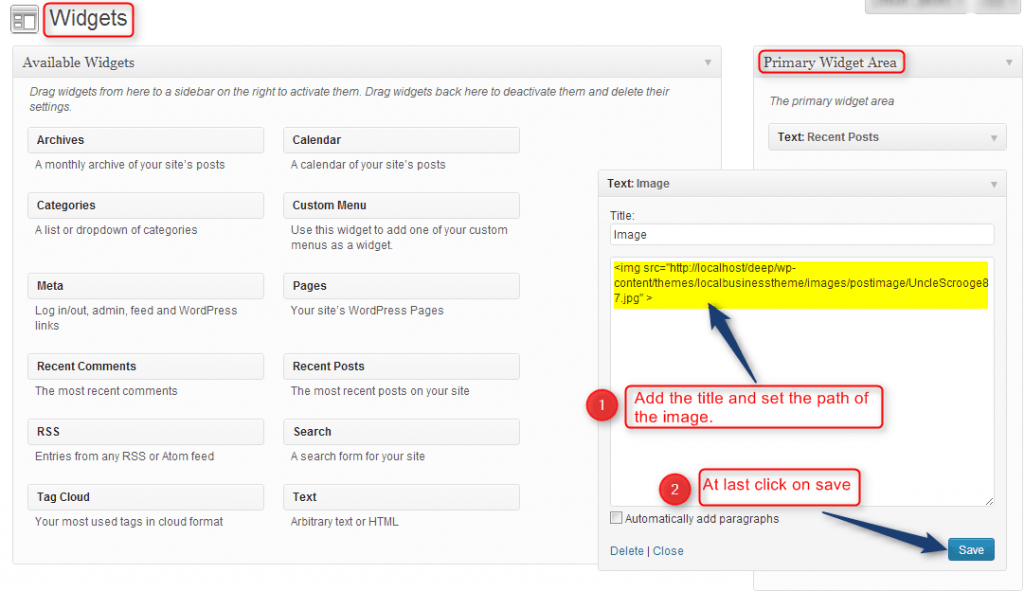
WordPress offers a variety of widgets to enhance the functionality and design of your website. These widgets are essential tools that allow you to provide users with valuable information, improve navigation, and showcase various types of content in a visually appealing manner. Understanding the different types of widgets available can help you tailor your website to better meet the needs of your audience.There are several types of widgets available in WordPress, each serving a specific purpose and providing unique functionalities.
Below, we categorize these widgets based on their functions, allowing you to easily identify which ones might be best suited for your website.
Categories of WordPress Widgets
The following table Artikels the different types of widgets available in WordPress, along with their functionalities:
| Widget Type | Functionality |
|---|---|
| Text Widget | Allows you to add custom text, HTML, or shortcodes to your sidebar or footer areas. |
| Image Widget | Enables you to upload an image and display it in your widget areas, often used for logos or promotional graphics. |
| Recent Posts Widget | Displays a list of your most recent blog posts, helping to keep your content visible and encourage readers to explore more. |
| Categories Widget | Shows a list of your blog categories, allowing users to easily navigate and find related content. |
| Calendar Widget | Displays a calendar view of your posts, highlighting the days on which new content was published. |
| Custom HTML Widget | Provides a space to add custom HTML code, which can be used for advanced functionalities or integrations. |
| Search Widget | Adds a search bar to your site, enabling visitors to quickly search for specific content. |
| Social Media Icons Widget | Displays icons linking to your social media profiles, encouraging users to connect with you on various platforms. |
“Widgets are powerful tools that can significantly enhance user experience and engagement on your WordPress site.”
These widgets cater to different aspects of your website, from layout and design to user interaction and engagement, allowing you to create a customized experience for your visitors. By strategically implementing these various widgets, you can improve the overall functionality and aesthetics of your WordPress site.
How to Add Widgets to Your WordPress Site
Adding widgets to your WordPress site is a straightforward process that can significantly enhance the functionality and appearance of your website. By utilizing widgets, you can customize your sidebar, footer, and other areas, providing visitors with essential information and interactive features. This section details the steps to access the widget area, add widgets using the drag-and-drop method, and save and preview your changes effectively.
Accessing the Widgets Area in the WordPress Dashboard
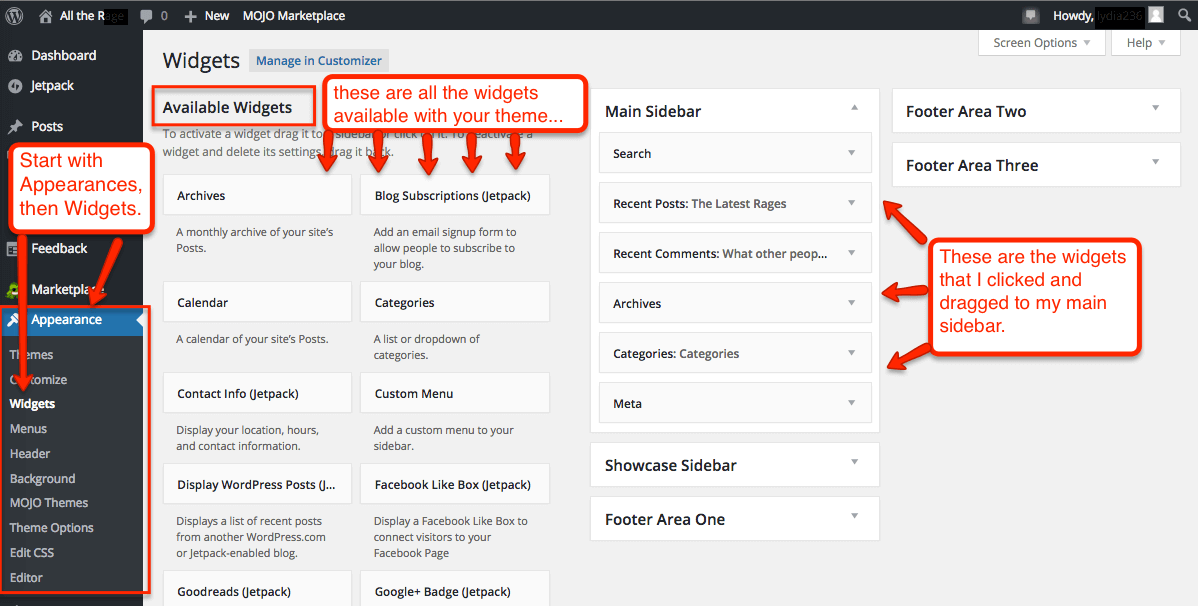
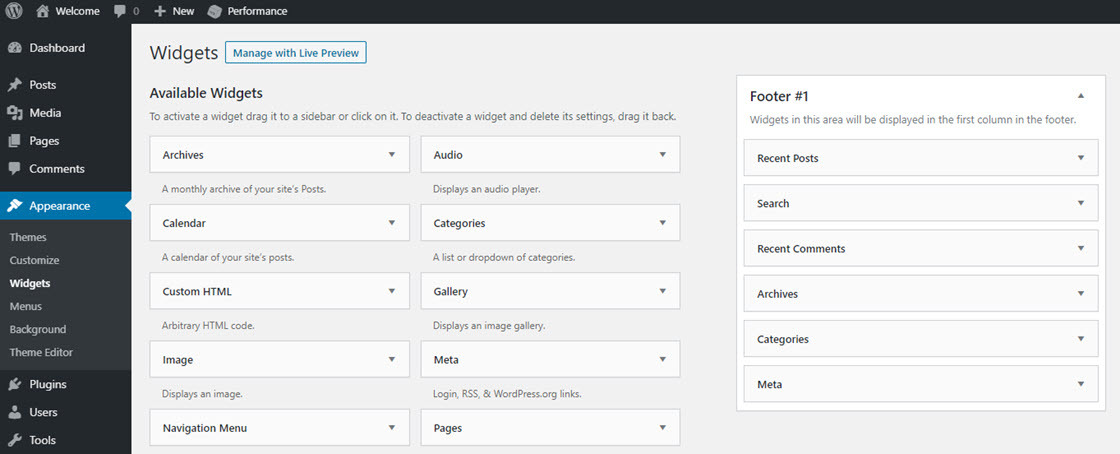
To begin adding widgets to your WordPress site, you must first access the widgets area within the WordPress dashboard. This section is typically found under the Appearance menu. Follow these steps to locate it:
- Log in to your WordPress admin panel.
- Navigate to the left sidebar and click on “Appearance.”
- From the dropdown menu, select “Widgets.”
Once in the widgets area, you will see a list of available widgets on one side and your active sidebars or widget areas on the other.
Using the Drag-and-Drop Method to Add Widgets
The drag-and-drop method is a user-friendly way to add widgets to your chosen areas. Here’s how to use this feature:
- Identify the widgets you want to add from the available list.
- Click on the desired widget and hold the mouse button down.
- Drag the widget over to the sidebar or widget area where you wish to place it.
- Release the mouse button to drop the widget in the selected area.
This method allows for easy arrangement of widgets, ensuring that they are positioned exactly where you want them on your site.
Saving and Previewing Widget Changes
After adding and arranging widgets, it is essential to save your changes before they go live. Here’s how you can save and preview your widget changes:
- Look for the “Save” button that appears in the widget area after you make changes. Click it to ensure that all your modifications are recorded.
- To preview your changes, visit your site’s front end. This allows you to see how the newly added widgets appear and function in the live environment.
Additionally, if you’re using the Customizer, you can preview changes in real time before publishing them. This functionality ensures that you can make adjustments as needed, enhancing the overall design and user experience of your website.
“Widgets enhance user engagement by providing valuable content and interactivity in various areas of your WordPress site.”
Customizing WordPress Widgets

Customizing WordPress widgets allows users to tailor the appearance and functionality of their sites to better meet the needs of their visitors. By adjusting settings such as titles, content, and visibility, users can create a more dynamic and engaging experience. This section will explore various methods for customizing widgets, as well as provide examples of CSS snippets for additional styling.
Customizing Widget Settings
WordPress widgets offer various settings that can be adjusted for better personalization. The most basic settings include the widget title and content. To customize these settings, follow these steps:
- Navigate to the Appearance > Widgets section in your WordPress dashboard.
- Select the widget you wish to customize and click on it to reveal its settings.
- Adjust the widget title to convey the intended message succinctly.
- Modify the content area to include relevant information, such as text, images, or custom HTML.
Each widget may have unique settings, allowing for a wide range of customization. Some widgets, like text widgets, allow for additional HTML content, while others, like recent posts or categories, focus on dynamic content delivery.
Adjusting Widget Visibility on Various Devices
Ensuring that widgets display correctly across different devices is crucial for user experience. WordPress allows customization of widget visibility based on screen size, which can be achieved through the use of plugins like Widget Context or Custom Sidebars. These tools enable the following:
- Displaying specific widgets on mobile devices while hiding them on desktops.
- Customizing widget visibility based on user roles (e.g., logged-in users vs. guests).
- Managing widget display for different post types or categories.
By leveraging these visibility controls, site owners can enhance mobile usability and ensure that their content is optimized for all visitors.
Styling Widgets with CSS
CSS can significantly enhance the visual appeal of widgets. Custom styling can be applied to ensure that widgets seamlessly fit into the overall site design. Below are a few examples of CSS snippets that can be used for styling widgets:
1. Change Widget Background Color
“`css .widget background-color: #f9f9f9; /* Light grey background – / padding: 20px; /* Add padding for better spacing – / border-radius: 5px; /* Rounded corners – / “`
2. Adjust Widget Title Style
“`css .widget-title font-size: 24px; /* Increase font size – / color: #333; /* Dark text color – / text-transform: uppercase; /* Uppercase letters – / “`
3. Style Widget Links
“`css .widget a color: #0073aa; /* Link color – / text-decoration: none; /* Remove underline – / .widget a:hover color: #005177; /* Darker color on hover – / text-decoration: underline; /* Underline on hover – / “`By applying these CSS rules, users can enhance their widget’s look, ensuring it aligns with the brand’s aesthetic and improves user interaction.
Popular Plugins for Enhanced Widget Management
In the realm of WordPress, widgets serve as vital tools for enhancing site functionality. While WordPress provides a variety of built-in widgets, the extension of their capabilities through plugins can significantly improve usability and effectiveness. By leveraging these plugins, users can customize their widgets to better meet their needs and those of their visitors.Several plugins stand out when it comes to enhancing widget management in WordPress.
These plugins not only provide additional widgets but also offer advanced features for organizing and controlling widget behavior across different pages and posts. Below, the installation and configuration processes for these plugins are discussed.
Top Recommended Plugins
The following plugins have earned acclaim for their ability to enhance widget management. Each plugin brings unique functionalities that cater to various user requirements.
- SiteOrigin Widgets Bundle: This plugin offers a collection of widgets that can be easily customized, providing flexibility for page building.
- Widget Options: It allows users to control the visibility of widgets based on device type, user roles, or specific pages, enhancing the overall user experience.
- Custom Sidebars: This plugin enables the creation of custom sidebars for different pages, allowing for greater personalization of content delivery.
- WP Widgetize: With this plugin, users can add widgets to any post or page through shortcodes, making widget integration more versatile.
To install and configure these plugins, follow these steps:
- Navigate to the WordPress dashboard.
- Select “Plugins” and then “Add New.”
- Use the search bar to find the desired plugin.
- Click “Install Now” and then “Activate.”
- Once activated, configure the settings as per your requirements, usually found under the “Settings” or “Appearance” sections.
Feature Comparison of Recommended Plugins
The following table provides a concise comparison of the features offered by each recommended plugin, enabling users to make informed decisions based on their needs.
| Plugin | Custom Widgets | Visibility Control | Custom Sidebars | Shortcode Support |
|---|---|---|---|---|
| SiteOrigin Widgets Bundle | Yes | No | No | No |
| Widget Options | No | Yes | No | No |
| Custom Sidebars | No | No | Yes | No |
| WP Widgetize | No | No | No | Yes |
Incorporating these plugins into a WordPress site can significantly enhance the functionality of widgets, allowing for more tailored user experiences and improved site management.
Best Practices for Using Widgets Effectively
Using widgets in WordPress can dramatically enhance the user experience and functionality of your site. However, employing them effectively requires strategic planning and careful consideration. By following best practices, you can ensure your site remains user-friendly while maximizing the benefits that widgets offer.Choosing the right widgets is paramount to creating a streamlined and engaging website. It is essential to consider the specific needs of your audience and the primary goals of your site before selecting widgets.
Below are several strategies to guide your widget selection process:
Strategies for Choosing the Right Widgets
When selecting widgets, it is important to align them with your site’s objectives and user preferences. Here are some key factors to consider:
- Relevance: Choose widgets that complement your content and provide value to your visitors. For instance, if you run a blog, a recent posts widget can keep your audience engaged with new content.
- User Experience: Select widgets that enhance navigation and improve usability. A search widget can help users find specific content quickly.
- Performance: Opt for lightweight widgets that do not significantly slow down your site. Performance should always be a priority to maintain a positive user experience.
- Goals: Consider the primary objectives of your site, whether it’s to generate leads, showcase a portfolio, or build community engagement. Ensure the widgets you choose support these goals.
Maintaining a clean layout is crucial to ensuring visitors can navigate your site easily. Widget overload can lead to a cluttered appearance, detracting from user experience and diluting your message. Here are some practices to avoid widget overload:
Avoiding Widget Overload
It is essential to strike a balance between functionality and simplicity. Overloading your site with too many widgets can confuse users and make it difficult for them to find pertinent information. Consider the following to maintain a clean layout:
- Limit Widget Quantity: Be selective about the number of widgets you use on each page. A minimalistic approach often results in a more visually appealing design.
- Strategic Placement: Position widgets in areas where they will be most effective. For instance, sidebars and footers are common places for additional information without distracting from main content.
- Consistent Design: Ensure that widgets share a similar design aesthetic with your site. This creates a harmonious look and feel, enhancing overall user experience.
Regularly reviewing and updating your widgets is necessary for maintaining relevance and functionality. As your website evolves, so do the needs of your audience. Here are some tips for a thorough review process:
Regularly Reviewing and Updating Widgets
Periodic checks on your widgets can help ensure they remain effective and aligned with your site’s goals. Below are some recommendations for conducting regular reviews:
- Analyze Performance: Use analytics tools to assess the effectiveness of your widgets. Check engagement metrics to determine which widgets are performing well and which need adjustment.
- Update Content: Ensure any dynamic widgets, such as social media feeds, reflect current information. Outdated content can lead to a decline in user trust.
- Solicit Feedback: Encourage your audience to provide feedback on the widgets in use. This can help you identify areas for improvement and new opportunities for widget implementation.
By adhering to these best practices, you can effectively use widgets to enhance your WordPress site while ensuring a clean and engaging user experience.
Troubleshooting Common Widget Issues
The implementation of widgets in WordPress can greatly enhance the functionality and user experience of a website. However, users often encounter various issues when working with widgets. Understanding these common problems and their solutions can aid in a smoother experience when managing your WordPress site.One of the primary challenges faced by users is the improper display of widgets. This can stem from various factors, such as theme incompatibility, plugin conflicts, or incorrect widget settings.
Recognizing these issues is the first step towards effective troubleshooting.
Common Widget Problems
Several issues frequently arise when working with widgets. Being aware of these can assist in quicker resolutions. The following points Artikel prevalent problems and potential causes:
- Widgets Not Displaying: Sometimes, widgets may not appear on the front end of the site due to theme restrictions or misconfigurations.
- Widget Misalignment: Widgets may become misaligned, usually resulting from CSS styles in the theme or conflicting plugins.
- Content Not Updating: Changes made to widget content may not reflect immediately, often due to caching plugins or browser cache.
- Missing Widget Areas: Some themes may not support specific widget areas, leading to confusion or dissatisfaction when trying to add widgets.
Solutions for Display Issues
To address common display issues, a systematic approach can be beneficial. Here are some solutions that can be employed to rectify widget display problems:
- Check Theme Compatibility: Ensure that your active theme supports the widgets you intend to use. Consult the theme’s documentation for specific widget functionalities.
- Disable Conflicting Plugins: Temporarily deactivating plugins can help identify if any are causing conflicts with widget display. Reactivate them one by one to pinpoint the issue.
- Clear Cache: If your website utilizes a caching plugin, clearing the cache can help display the most current widget content. Additionally, clearing your browser cache can also resolve display issues.
- Inspect CSS: If the widgets are misaligned, inspecting the CSS rules applied can help in adjusting styles to achieve the desired layout.
Troubleshooting Steps for Widget-Related Errors
When encountering errors related to widgets, a structured troubleshooting process can be invaluable. Here are some effective steps to take:
- Verify widget settings: Ensure that all widget settings are correctly configured and saved.
- Switch to a default theme: Temporarily changing the theme to a WordPress default (like Twenty Twenty-One) can help identify if the issue is theme-related.
- Check error logs: Review the site’s error logs for any messages that may indicate the source of widget problems.
- Consult WordPress Support: Utilize the WordPress support forums or documentation for additional insights and assistance.
- Backup and Restore: If issues persist, consider restoring the site from a backup prior to the occurrence of the issue.
“A systematic approach to troubleshooting can save time and frustration, leading to effective solutions for widget-related issues.”
Advanced Widget Techniques
In the realm of WordPress, widgets provide a versatile way to add functionality and enhance the user experience. For those looking to take their customization further, creating custom widgets is an excellent way to meet specific needs. This section will delve into the basics of developing your own widgets using fundamental coding techniques, providing a clear step-by-step guide along with resources to further your knowledge in widget development.
Creating Custom Widgets Using Basic Coding
Developing custom widgets allows users to tailor their website’s functionality to better suit their goals. The process involves utilizing PHP, HTML, CSS, and possibly JavaScript to create unique widget experiences. To create a simple widget, follow these steps:
1. Set Up Your Development Environment
Ensure that you have a local WordPress installation set up for testing. This can be done using software like XAMPP or MAMP.
2. Create a Plugin Folder
Navigate to the `wp-content/plugins` directory of your WordPress installation and create a new folder for your custom widget. You might name it something like `my-custom-widget`.
3. Create a Plugin File
Inside your new folder, create a PHP file named `my-custom-widget.php`. This file will hold the core code for your widget.
4. Define Your Widget Class
Within `my-custom-widget.php`, write the following code to define your widget class: “`php __(‘A simple widget example’, ‘text_domain’)) ); public function widget($args, $instance) echo $args[‘before_widget’]; echo __(‘Hello, World!’, ‘text_domain’); echo $args[‘after_widget’]; public function form($instance) // Form fields for widget settings can be added here public function update($new_instance, $old_instance) return $new_instance; function register_my_custom_widget() register_widget(‘My_Custom_Widget’); add_action(‘widgets_init’, ‘register_my_custom_widget’); ?> “`
5. Activate Your Widget
Go to the WordPress Admin dashboard, navigate to the Plugins section, and activate your newly created widget plugin.
6. Add Your Widget to a Sidebar
Once activated, go to the Appearance > Widgets section to find your custom widget. You can now drag it to your desired sidebar or widget area.
Resources for Learning More About Widget Development
Expanding your knowledge on widget development can lead to more complex and functional widgets. Here are some helpful resources to further your understanding:
WordPress Codex
The official WordPress Codex provides comprehensive documentation on widget development, including best practices and examples.
WPBeginner
This website offers tutorials and guides ranging from beginner to advanced levels, making it a valuable resource for learning about WordPress development.
Udemy and Coursera
Online learning platforms like Udemy and Coursera offer various courses on WordPress development, including widget creation.
YouTube Tutorials
Many developers share their insights and provide step-by-step tutorials on YouTube, which can be beneficial for visual learners.By leveraging these resources, you can deepen your understanding of custom widget development and enhance your WordPress site’s functionality significantly.
Summary
In summary, mastering How to Use WordPress Widgets to Add Functionality opens up a world of possibilities for enhancing your website. By carefully selecting and managing your widgets, you can create a more dynamic and user-friendly experience for your visitors. Embrace the power of widgets, and watch as your website transforms into a more versatile platform, ready to meet the needs of your audience.