Embarking on the journey of website creation can be both exciting and overwhelming, especially for beginners. How to Use Weebly to Build Your First Website for Free serves as your comprehensive guide to effortlessly navigate through this process, ensuring that you possess the necessary knowledge and tools to create a stunning online presence.
From registering your Weebly account to finally publishing your website, this guide will illuminate the essential steps, design elements, and valuable features that make Weebly an excellent choice for novice web developers.
Getting Started with Weebly

To begin your journey in website creation, Weebly provides an accessible platform for users of all experience levels. The streamlined process allows anyone to establish a professional online presence without needing extensive technical skills. This section will guide you through the initial steps of setting up your Weebly account, selecting the appropriate template, and navigating the user-friendly dashboard.
Registration Process for a Weebly Account
Creating a Weebly account is straightforward and requires only a few minutes. To initiate the process, visit the Weebly website and click on the “Get Started” button. You will be prompted to enter your email address and create a password. Alternatively, you can register using an existing Google or Facebook account, which simplifies the login process. Once you’ve completed this step, confirm your email address to activate your account.
Choosing the Right Template for Your Website
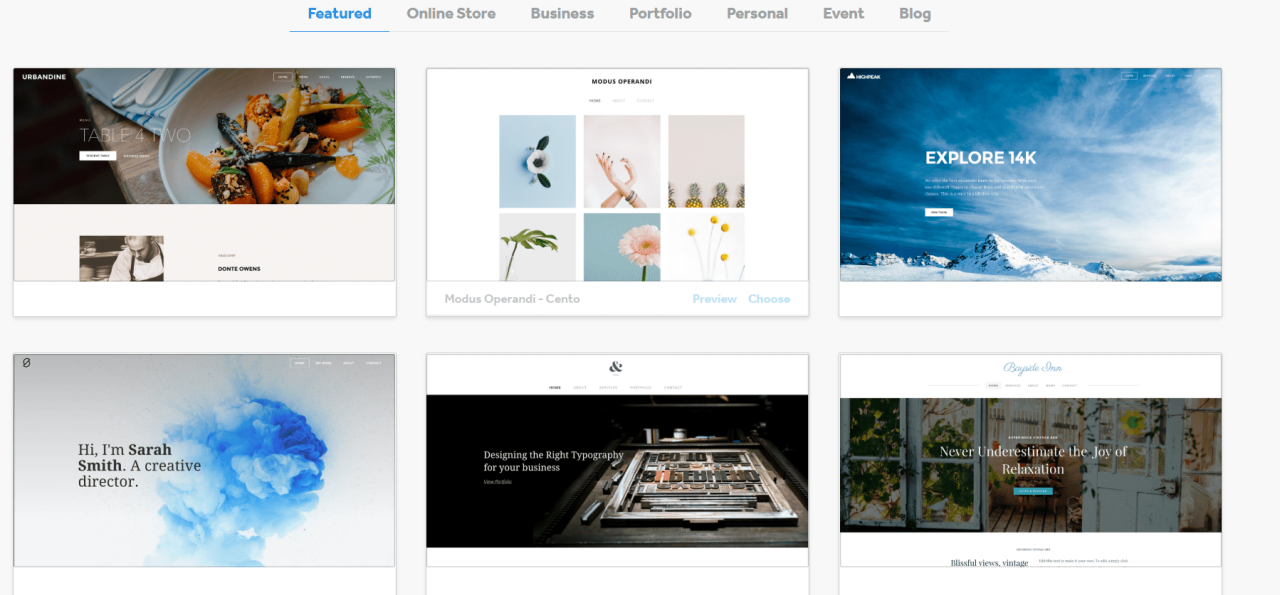
The selection of a suitable template plays a crucial role in defining the overall look and functionality of your website. Weebly offers a diverse collection of professionally designed templates tailored to various industries and purposes, such as business, portfolios, blogs, and online stores. When selecting a template, consider the following aspects:
- Design Aesthetics: Choose a template that aligns with your brand identity and resonates with your target audience.
- Functionality: Ensure that the template supports the features you plan to incorporate, such as galleries for images or e-commerce capabilities.
- Mobile Responsiveness: It is essential that your template looks good on all devices, including smartphones and tablets, to reach a broader audience.
- Customization Options: Select a template that allows you to easily modify colors, fonts, and layouts to personalize your site.
Dashboard Navigation and Its Features for Beginners
The Weebly dashboard serves as your control center for managing your website. Upon logging in, you will encounter a clean and intuitive interface designed to facilitate easy navigation. Key features of the dashboard include:
- Site Editor: This is where you can visually construct your website by dragging and dropping elements such as text, images, and forms onto your pages.
- Pages Menu: Access and manage all of your website’s pages, including options to add new pages, rearrange existing ones, or delete unnecessary ones.
- Theme Settings: Customize your website’s appearance by altering themes, colors, fonts, and other visual elements to achieve your desired look.
- Settings: Configure important aspects of your website, such as settings, domain management, and site security options.
Designing Your Website
Designing your website on Weebly is an essential step in creating a visually appealing and user-friendly experience for your visitors. The platform offers an intuitive drag-and-drop interface that simplifies the process of customizing your site’s layout and design to align with your brand.To begin designing your website, you will explore various customization options available within the Weebly builder. This includes selecting themes, adjusting layouts, and adding elements such as text, images, and videos to enhance your pages’ visual appeal and functionality.
Customizing Your Website’s Layout
The customization process starts with choosing a theme that reflects your vision. Weebly provides a variety of pre-designed themes, which can be further personalized. To effectively customize your layout, follow these steps:
1. Select a Theme
Navigate to the “Themes” section in the Weebly dashboard. Browse through the available options and select a theme that best represents your brand’s identity.
2. Edit Your Layout
Utilize the drag-and-drop functionality to rearrange elements on your homepage. You can move sections up and down to create the desired flow of content.
3. Adjust Settings
Click on the “Settings” icon to modify your site’s title, tagline, and favicon. These elements contribute to your website’s branding.
4. Preview Changes
Use the preview option to see how your site looks on different devices, ensuring a responsive design that accommodates all users.
Adding Elements to Your Pages
Incorporating various elements into your pages is crucial for engaging visitors. Weebly allows you to add text, images, videos, and more. Here’s how to do it:
Text Blocks
To add text, simply drag a “Text” element from the builder menu to your desired location. You can then edit the text by clicking on it, changing font styles, sizes, and colors to fit your design.
Images
Adding images is done by dragging the “Image” element into your page. Upon uploading, you can resize, crop, and align images to suit the layout.
Videos
To include videos, drag the “Video” element onto the page, and input the URL from platforms like YouTube or Vimeo. This integration enhances user engagement significantly.
Utilizing Weebly Builder Tools
Weebly’s builder tools provide a robust suite of options for design adjustments. Understanding how to use these tools effectively can significantly impact your website’s aesthetic and user experience. Key tools to consider include:
Sections
Utilize the “Sections” feature to group related content, such as testimonials or services, making your site more organized.
Backgrounds
Customize backgrounds for sections or entire pages to create distinct areas of visual interest. You can select solid colors, gradients, or images as backgrounds.
Spacing Adjustments
Adjust margins and padding to create a balanced design. This prevents elements from appearing cramped and enhances readability.
Animations
Weebly allows for the inclusion of animations on elements. Subtle animations can draw attention without overwhelming the user experience.By following these guidelines, you will successfully design a professional-looking website that resonates with your audience and effectively represents your brand.
Adding Content to Your Website
Creating a website is an exciting venture, and adding content to it is a crucial step in making it engaging and informative. With Weebly, you can easily create and manage your content, ensuring that your site is not only visually appealing but also rich in information. This section will cover essential pages, content writing and editing procedures, and the effective integration of multimedia elements.
Essential Pages for a Basic Website Setup
Establishing a website requires the inclusion of several fundamental pages that communicate the necessary information to your visitors. These pages form the backbone of your site, providing users with a clear understanding of your offerings. Below is a list of essential pages to consider:
- Home: The gateway to your website, introducing visitors to your brand and its offerings.
- About Us: A page dedicated to sharing your story, mission, and values, helping to build a connection with your audience.
- Services/Products: A detailed overview of what you offer, including descriptions, prices, and features.
- Contact: Essential for allowing users to reach you, this page should include contact forms, email addresses, and possibly phone numbers.
- Blog/News: A section for sharing updates, articles, or insights related to your industry, enhancing engagement and .
- Testimonials: Showcasing customer reviews and feedback can foster trust and credibility for your brand.
Writing and Editing Content in Weebly
Weebly offers a user-friendly interface for writing and editing content, which is essential for maintaining your website’s relevance and appeal. To create and modify your text, follow these steps:
- Navigate to the page where you want to add content.
- Click on the “Edit” button to access the content area.
- Utilize the text editor available, which provides options for font selection, text size, and style.
- Write or paste your content directly into the editor. Make sure to format it properly, using headings, lists, and paragraphs to enhance readability.
- After writing, utilize the preview function to see how your content appears on the published site.
- Once satisfied, click “Publish” to make your changes live.
Additionally, Weebly allows you to edit existing content by clicking on the text area you wish to modify, making it easy to keep your information up to date.
Integrating Multimedia Content Effectively
Incorporating multimedia elements such as images, videos, and audio can significantly enhance your website’s appeal and user engagement. Weebly simplifies the process of adding these assets, allowing for a more dynamic user experience. Here are guidelines for effective multimedia integration:
Images
Use high-quality images that reflect your brand identity. To add an image, simply drag and drop it into the desired location on your page. Ensure that your images are optimized for web use to prevent slow loading times.
Videos
Embedding videos can convey messages more powerfully than text alone. You can add videos from platforms like YouTube or Vimeo by copying the embed code and pasting it into the Weebly editor in an appropriate location.
Audio
Including audio clips can enhance storytelling or provide musical backgrounds. Use the “Audio” element in Weebly to upload directly or link to audio files hosted elsewhere.When integrating multimedia, always consider the overall layout and ensure that each element complements the written content, creating a cohesive and engaging user experience.
Effective content integration is pivotal for maintaining user engagement on your website.
Configuring Settings and Features
Configuring the settings and features of your Weebly website is crucial for establishing its identity and visibility on the web. This phase of website creation involves crucial steps such as setting up your domain name, enhancing your site’s , and connecting to social media accounts. These configurations help in branding your site, improving search engine rankings, and driving traffic through social engagement.
Setting Up Your Domain Name
Your domain name serves as the online address for your website, playing a significant role in your site’s branding and accessibility. Even if you opt for a free Weebly plan, you can still create a recognizable domain. To set up your domain name, follow these steps:
1. Access the Settings Menu
Navigate to the dashboard and click on “Settings.”
2. Choose Domain
From the settings options, select “Domain.”
3. Select Free Weebly Domain
Here, you have the option to create a subdomain under Weebly’s domain (e.g., yoursite.weebly.com) or purchase a custom domain for a more professional appearance.
4. Purchase a Custom Domain
If you opt for a custom domain, follow the prompts to search for availability and complete the purchase through Weebly’s integrated domain shop.
5. Connect Your Domain
For those who own an external domain, Weebly provides instructions to connect it to your Weebly account, ensuring proper redirection and accessibility.
Configuring Settings
Search Engine Optimization () settings are vital for increasing your website’s visibility on search engines. Proper configuration helps in attracting organic traffic and improving your site’s ranking in search results.Steps to optimize your settings in Weebly include:
Access Settings
Go to the “Settings” menu and select “.”
Title and Description
Fill in the site title and meta description with relevant s that describe your business succinctly. This information appears in search results, influencing click-through rates.
Page-Specific
For each page, customize the settings by providing unique titles and descriptions. Ensure that you incorporate s naturally.
Enable SSL
Weebly automatically provides SSL for custom domains, enhancing site security, which is a ranking factor for search engines.
Mobile Optimization
Ensure your site is mobile-friendly as Google prioritizes mobile-responsive designs in its ranking algorithms.
Connecting Social Media Accounts and Integrating Other Features
Integrating social media accounts with your Weebly site is essential for enhancing engagement and expanding your online presence. By connecting these accounts, you can drive traffic to your site and leverage your social platforms for marketing.To connect social media, follow these steps:
1. Access the Settings Menu
Click on “Settings” from your dashboard.
2. Social Accounts
Select the “Social” tab to find options for linking your accounts.
3. Add Social Media Links
Enter the URLs for your social media profiles (e.g., Facebook, Twitter, Instagram). These links will appear on your website, allowing visitors to follow you easily.
4. Add Social Sharing Buttons
Use Weebly’s built-in features to enable social sharing buttons for your content, making it easy for visitors to share your pages on their networks.
5. Integrate Other Features
Explore additional integrations available through Weebly, such as email marketing tools, Google Analytics, and e-commerce features, to enhance functionality and track performance effectively.By carefully configuring your website’s settings and features, you establish a strong foundation for an effective online presence, enabling better user engagement and improved visibility.
Previewing and Publishing Your Website
Before making your website live, it is essential to preview it to ensure everything is functioning as intended. Weebly provides an easy-to-use interface to review your site before publishing, allowing you to make necessary adjustments and enhancements. This step is crucial for ensuring that visitors will have a seamless experience when accessing your site.
Previewing Your Website
To effectively preview your website in Weebly, follow these steps:
1. Access the Preview Mode
Within the Weebly editor, locate the “Preview” button, typically found at the top right corner of the screen. Clicking this will open your site in a new tab, displaying how it will appear to visitors.
2. Review Each Page
Navigate through each of your web pages using the preview mode. This allows you to check the layout, formatting, and overall design.
3. Test Functionality
Ensure that all buttons, links, and interactive features work as expected. Click through forms, galleries, and navigation menus to confirm proper functionality.
4. Check Content Layout
Pay attention to the text alignment, image placement, and any embedded media. Make sure everything looks polished and professionally arranged.
5. Review Different Viewports
Utilize the device icons in the preview mode to switch between desktop, tablet, and mobile views, allowing for thorough testing across different screen sizes.
Mobile Responsiveness
Mobile responsiveness is critical in today’s digital landscape, as a significant portion of web traffic comes from mobile devices. Weebly facilitates the creation of responsive websites that adapt to various screen sizes. Testing for mobile responsiveness can be done within the preview mode by switching to the mobile view.It is advisable to review aspects such as:
Text Size and Readability
Ensure that text is legible without zooming.
Image Scaling
Images should resize properly without distortion.
Button Accessibility
Confirm that buttons are easily clickable and not too small for touch navigation.
Overall Navigation
The site’s menu should be user-friendly and accessible on mobile devices.For a more comprehensive approach, consider using online tools such as Google’s Mobile-Friendly Test to analyze your site’s mobile performance.
Publishing Your Website
After thorough previewing and ensuring responsiveness across devices, you are ready to publish your website. The process of making your site live involves the following steps:
1. Select the Publish Option
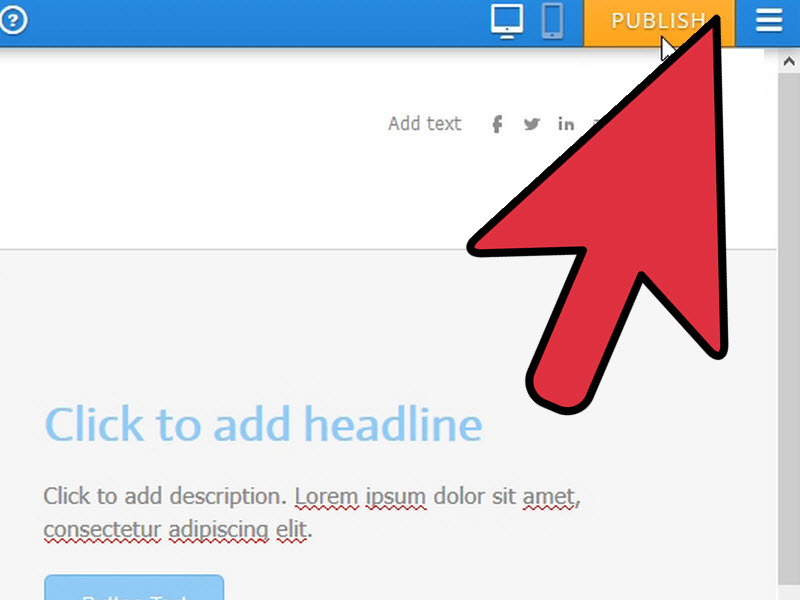
In the Weebly editor, find the “Publish” button, typically located near the Preview button. Click it to initiate the publishing process.
2. Choose a Domain Name
If you haven’t already, you will need to select a domain name. Weebly offers a free subdomain, but you can also connect a custom domain if preferred.
3. Confirm Settings
A dialog box may appear, asking you to confirm your publishing settings. Review these settings to ensure that your website is configured as desired.
4. Publish
Once you are satisfied with your settings, click the final “Publish” button to make your website live.
5. Verify Live Site
After publishing, visit your website’s URL to check its appearance and functionality in a live environment.
The process of previewing and publishing your Weebly website ensures that your content is presented effectively, enhancing the user experience and reaching your audience successfully.
Maintenance and Updates
Regular maintenance and updates of your Weebly website are crucial for ensuring optimal performance, security, and user engagement. A well-maintained website not only improves user satisfaction but also enhances your site’s visibility in search engines. This section Artikels effective practices for keeping your website content fresh and relevant, as well as approaches for monitoring and improving site performance after launch.
Best Practices for Updating Website Content Regularly
Keeping your website content updated is essential for maintaining user interest and enhancing rankings. Regular updates can include blog posts, new product listings, or changes to services offered. To effectively manage updates, consider the following practices:
- Establish a Content Calendar: Create a schedule for regular content updates, which helps in planning ahead and ensures consistency.
- Review and Refresh Existing Content: Periodically assess older content for accuracy and relevance, updating any outdated information or statistics.
- Engage with User Feedback: Monitor comments and inquiries from visitors to identify topics of interest or concern, adapting content accordingly.
- Incorporate Seasonal or Relevant Themes: Tailor your content to reflect holidays, events, or trending topics to keep your website engaging.
Website Performance and Analytics Monitoring
Evaluating the performance of your Weebly site is vital for making informed adjustments and improvements. Tools such as Google Analytics can provide comprehensive insights into user behavior, traffic sources, and page performance. Key metrics to monitor include:
- Traffic Sources: Identify where your visitors are coming from, whether search engines, social media, or direct links, to optimize your marketing efforts.
- User Engagement: Analyze metrics such as average session duration and bounce rate to gauge how well users interact with your content.
- Conversion Rates: Track the percentage of visitors who take desired actions, such as signing up for a newsletter or making a purchase, to evaluate the effectiveness of your site.
- Site Speed: Monitor loading times and make necessary adjustments to improve overall performance, as slower websites can deter users.
Making Changes or Improvements After Launch
After your website is live, continuous improvement is necessary for staying competitive and addressing user needs. Implementing changes can involve both minor tweaks and major overhauls. To guide this process, consider the following strategies:
- Regularly Collect User Feedback: Utilize surveys, feedback forms, or direct communication to understand user experiences and identify areas for improvement.
- Test New Features: Experiment with additional functionalities, such as new plugins or design elements, and monitor user responses to gauge effectiveness.
- Analyze Competitor Websites: Stay informed about industry trends by reviewing competitor sites, identifying successful strategies they employ that you can adapt.
- Focus on Best Practices: Regularly update your strategy based on analytics data, ensuring that your website remains optimized for search visibility.
Troubleshooting Common Issues
Building your first website with Weebly is an exciting journey, but like any new endeavor, it can come with its share of challenges. First-time users may encounter a variety of issues ranging from technical glitches to design dilemmas. Understanding these common obstacles and knowing how to address them can significantly enhance your experience and confidence in using the platform.When navigating through Weebly, users might face issues such as difficulties in saving changes, problems with website visibility, or challenges in customizing design elements.
To assist in overcoming these hurdles, Weebly offers various customer support options, including a comprehensive help center, community forums, and email support. Utilizing these resources can provide clarity and solutions to many common problems.
Common Technical Issues and Their Solutions
Identifying and resolving technical issues is crucial for ensuring a seamless website-building experience. Below are some prevalent problems users may experience and their respective solutions:
- Website Not Saving Changes: This can often occur due to browser issues. Ensure your browser is up to date and consider clearing the cache. If the problem persists, try using a different browser or device.
- Images Not Uploading: This issue may arise from file size limits or unsupported formats. Check that your images are in a compatible format (e.g., JPEG, PNG) and do not exceed the size limit specified by Weebly.
- Pages Not Publishing: If your website isn’t visible after publishing, verify that the site is set to “public” in the settings. If changes are still not reflected, try republishing the site.
- Design Layout Issues: Sometimes, elements may not align as intended. Consider using the “Preview” mode to assess changes before publishing. Revisit the design settings to ensure all elements are correctly configured.
Customer Support Options
Weebly provides a variety of customer support options designed to help users troubleshoot and resolve issues effectively. These resources include:
- Help Center: A vast library of articles and guides covering common questions and troubleshooting tips.
- Community Forums: A space where users can share experiences and solutions, offering peer-to-peer support.
- Email Support: Direct access to Weebly’s support team for personalized assistance on complex issues.
- Video Tutorials: Step-by-step guides available on platforms like YouTube, helping users visually navigate the software.
Troubleshooting Design and Functionality Problems
Design and functionality issues can hinder the overall user experience and effectiveness of a website. Here are some practical troubleshooting tips to address these concerns:
- Responsive Design Problems: Test your website on different devices to ensure it looks good across all screen sizes. Adjust settings as needed in the responsive design section.
- Broken Links: Regularly check all hyperlinks to ensure they direct users to the correct pages. Use the link checker tool provided in the Weebly editor.
- Customization Limitations: If you are unable to achieve the desired look, explore the available templates and design options. Sometimes, starting with a different template can provide a more favorable layout.
- Slow Loading Times: Optimize images and reduce the number of active plugins to enhance site performance. A fast-loading site is crucial for user retention.
“Troubleshooting common issues effectively ensures a smoother website-building process and enhances user satisfaction.”
Concluding Remarks
In conclusion, mastering Weebly opens the door to endless possibilities for your online endeavors. With the knowledge gained from this guide, you are now equipped to create, maintain, and enhance your website, paving the way for a successful digital journey. Remember, the key to effective web development is continuous learning and adaptation, and with Weebly, you are well on your way.