How to Use the WordPress Block Editor (Gutenberg) marks a significant evolution in the world of content creation, transforming the way users interact with the platform. This innovative editor not only enhances the editing experience but also empowers users to craft engaging and visually appealing content with ease. By integrating a block-based system, Gutenberg facilitates a more intuitive approach to building posts and pages, offering a variety of features that streamline the workflow for both novice and experienced users alike.
In this guide, we will explore the essential aspects of the Block Editor, from accessing its user-friendly interface to understanding the diverse types of blocks available for content creation. Whether you are setting up your first blog post or designing complex layouts, this comprehensive overview will provide you with the tools and knowledge necessary to maximize your use of Gutenberg.
Introduction to the WordPress Block Editor
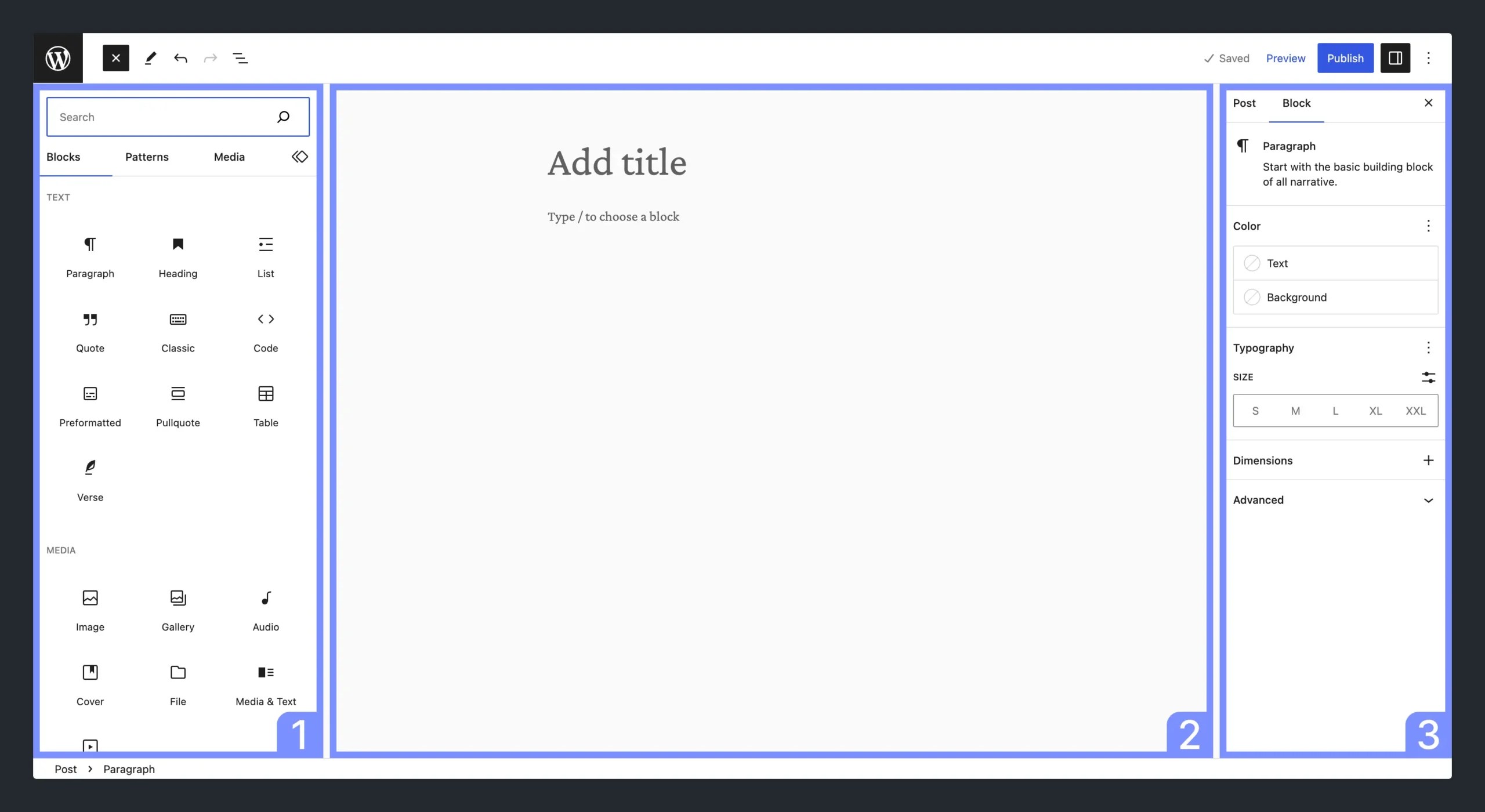
The evolution of WordPress has been marked by significant advancements aimed at enhancing user experience and content creation capabilities. With the release of WordPress 5.0 in December 2018, the Block Editor, also known as Gutenberg, was introduced, transforming the way users create and manage content. This innovative approach brought a modular design to content creation, allowing for greater flexibility and control over the layout.The Block Editor offers a user-friendly interface that enables users to create complex layouts with ease.
Its main features include a block-based system where each piece of content, such as paragraphs, images, and videos, is treated as an individual block. This feature allows for easy manipulation and arrangement of content elements. In addition, the Block Editor supports a variety of block types, including custom blocks that can be created by developers, offering extensive customization options. The advantages of using the Block Editor include a more intuitive editing experience, real-time previews, and the ability to create rich media layouts without needing extensive technical knowledge.
Main Features of the Block Editor
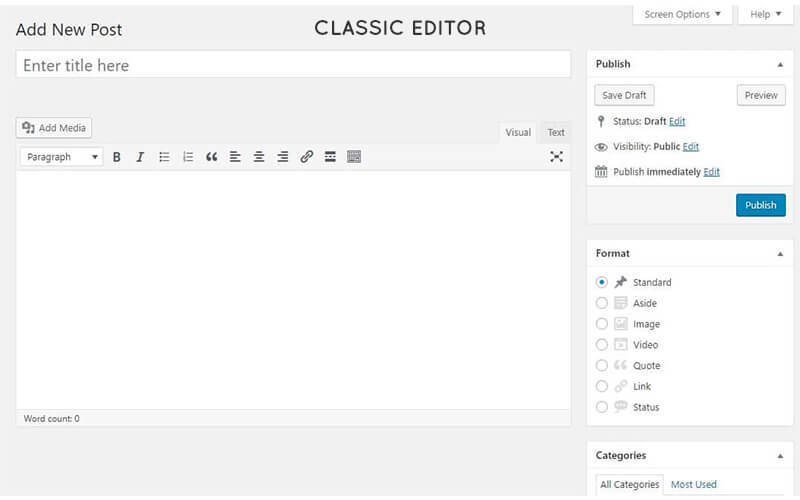
The Block Editor introduces several features that significantly improve the content creation experience compared to the Classic Editor. These features not only streamline the editing process but also enhance the overall functionality of WordPress as a content management system.
- Modular Content Blocks: Each content element can be inserted, edited, and rearranged independently, allowing for precise layout control.
- Real-time Editing: Users can see changes instantly as they edit, facilitating a more dynamic and engaging content creation experience.
- Diverse Block Types: The editor supports various block types, including text, media, buttons, and embeds, offering rich multimedia integration.
- Custom Block Development: Developers can create custom blocks tailored to specific needs, enhancing functionality and user experience.
The introduction of the Block Editor has revolutionized the way users interact with the WordPress platform. It has shifted the focus from linear text editing to a more visual and flexible layout approach, making it accessible for users with varying levels of technical proficiency.
The Block Editor empowers users to create content that is visually appealing and organized, transforming the WordPress editing experience into a more intuitive and engaging process.
Overall, the transition from the Classic Editor to the Block Editor marks a significant milestone in WordPress’s evolution, emphasizing user-centric design and functionality. The Block Editor not only enhances the efficiency of content creation but also opens up new possibilities for creativity and customization.
Getting Started with the Block Editor

The WordPress Block Editor, also known as Gutenberg, provides a flexible and user-friendly way to create and manage content on your website. Understanding how to access and utilize this powerful tool is essential for enhancing your web presence. This section will guide you through the initial steps of using the Block Editor, ensuring a smooth transition into creating engaging posts and pages.Accessing the Block Editor in WordPress is straightforward.
To begin, you must log in to your WordPress dashboard. Once logged in, you can navigate to the Block Editor by following these simple steps:
Steps to Access the Block Editor
After logging into your WordPress admin area, the path to the Block Editor is easily accessible. Here is how to find it:
- Click on the ‘Posts’ or ‘Pages’ menu item on the left sidebar of the dashboard.
- To create a new post or page, click on ‘Add New’ located at the top of the respective section.
- This action will open the Block Editor interface, where you can start creating your content.
Familiarizing yourself with the Block Editor interface will greatly enhance your content creation experience. Below are key components and navigation tips that every beginner should know.
Essential Interface Elements and Navigation Tips
Understanding the interface of the Block Editor is crucial for efficient content development. The editor is structured to provide a seamless writing experience, incorporating various elements:
- The Content Area: This is the main section where you will write and edit your post or page content.
- The Block Toolbar: Located at the top of each block, this toolbar provides essential options such as alignment, block settings, and formatting tools.
- The Block Inserter: Accessible by clicking the ‘+’ button, it allows you to add new blocks for various content types, such as text, images, galleries, and more.
- The Document Settings Sidebar: This sidebar contains options for publishing, categories, tags, and other post-specific settings.
For beginners, navigating the Block Editor is made easier with these tips:
- Pressing the ‘Tab’ key allows you to move through different blocks quickly.
- Utilize the Command Palette (accessible by pressing ‘CMD + K’ on Mac or ‘CTRL + K’ on Windows) to search for blocks and commands efficiently.
- Familiarize yourself with keyboard shortcuts for common actions, such as ‘CMD + B’ for bolding text or ‘CTRL + Z’ for undoing actions.
“The Block Editor empowers users to create visually appealing content without needing extensive technical knowledge.”
By understanding these initial steps and elements of the Block Editor, you can begin to create content that is not only functional but also aesthetically pleasing, enhancing your overall web presentation.
Understanding Blocks and Their Types
In the WordPress Block Editor, commonly known as Gutenberg, content creation is structured around the concept of “blocks.” Each block serves as a distinct unit of content that can be individually managed and customized. This modular approach allows users to build and edit websites with greater flexibility, enhancing the overall design and functionality of a webpage.Blocks can be thought of as the building blocks of your content.
They enable users to insert various types of content elements seamlessly into their posts and pages, thus ensuring a more organized and visually appealing layout. Understanding the different types of blocks available is essential for leveraging the full potential of the WordPress Block Editor.
Types of Blocks
Numerous block types are available within the WordPress Block Editor, each serving specific purposes. Familiarizing yourself with these blocks can significantly improve the way you present your content. Below is a comprehensive list of the different block types along with their respective use cases.
| Block Type | Description | When to Use |
|---|---|---|
| Paragraph | Standard text block for writing content. | Use for general text, introductions, and explanations. |
| Image | Block for inserting single images. | Use to visually enhance posts with relevant photos or graphics. |
| Gallery | Block for displaying a collection of images. | Use for showcasing multiple images related to a theme or topic. |
| Heading | Block for creating headings and subheadings. | Use to structure content and improve readability. |
| List | Block for creating ordered or unordered lists. | Use to present information in a clear and concise manner. |
| Quote | Block for highlighting quotes or testimonials. | Use to draw attention to important statements or endorsements. |
| Button | Block for creating clickable buttons. | Use to encourage user interaction, such as calls to action. |
| Video | Block for embedding video content. | Use to enrich posts with multimedia elements. |
| Audio | Block for embedding audio files. | Use for podcasts or audio clips that complement the written content. |
| Columns | Block for creating multi-column layouts. | Use when you want to present content side by side for a more dynamic layout. |
“Using the right block type is essential for effective content presentation, enhancing both functionality and aesthetics.”
Certain block types can be particularly effective in specific contexts. For instance, a “Gallery” block is ideal for pages showcasing a portfolio, while “Button” blocks are best suited for landing pages aimed at conversions. By strategically selecting the appropriate block types, users can create engaging and visually compelling content tailored to their audience’s needs.
Customizing Blocks
Customizing the appearance of blocks in the WordPress Block Editor (Gutenberg) is essential for creating visually appealing and user-friendly web pages. The Block Editor provides a variety of settings that allow users to modify the look and feel of their content, ensuring it aligns with their design preferences and branding. Understanding these customization options is fundamental for every WordPress user looking to enhance their site’s aesthetic and functionality.
Using Block Settings for Customization
Each block in the Block Editor comes with its own set of settings that can be adjusted to tailor the block’s appearance. These settings include options for adjusting colors, alignment, and typography. Utilizing these features can greatly improve the visual coherence of a web page.
To customize a block using its settings, follow these steps:
- Select the block you wish to customize.
- In the right-hand sidebar, navigate to the “Block” tab to access various settings.
- Adjust the settings according to your design requirements, including choosing color, alignment, and typography.
Color, Alignment, and Typography Settings
The Block Editor allows for extensive customization through various settings that can transform the appearance of blocks. Each of these attributes can help emphasize content and improve readability. Below are the key customization options available for different block types.
Color settings can be applied to text, background, and borders, allowing users to create a cohesive color scheme throughout their website. The alignment options, such as left, center, right, and full width, help in positioning content effectively. Typography settings enable users to select font sizes, line height, and font families, which are vital for enhancing text readability.
The following aspects are critical when customizing blocks:
- Color: Customize text and background colors using the color palette or inputting hex codes to match the site’s branding.
- Alignment: Align blocks to create a structured layout. For instance, aligning images centrally can draw attention to them.
- Typography: Choose appropriate font styles and sizes to ensure readability and maintain a professional appearance.
Adding Custom CSS Styles
For advanced users, adding custom CSS styles to blocks can provide even more flexibility and control over the design. Custom CSS can be applied to individual blocks or globally across the site, depending on the desired effect. This feature allows users to achieve unique designs that are not possible with the default settings.
To add custom CSS styles to a block, follow these steps:
- Select the block and navigate to the “Advanced” section in the block settings.
- Locate the “Additional CSS Class(es)” field and input your desired class name.
- In the WordPress Customizer, add your custom CSS code targeting the class name you specified.
Adding custom CSS allows users to create a truly unique design that reflects their brand’s identity, enhancing the user experience and overall site aesthetics.
When implementing custom CSS, it is recommended to have a basic understanding of CSS properties to ensure the desired effects are achieved without compromising the site’s functionality or responsiveness. Always test changes across different devices to maintain a seamless user experience.
Creating Complex Layouts
Creating visually appealing and interactive layouts in WordPress can significantly enhance the user experience on your website. Utilizing the block editor, or Gutenberg, allows for the creation of complex layouts that can accommodate a variety of content types. By effectively leveraging multiple blocks, you can design a site that meets your specific needs while maintaining a cohesive look.The WordPress block editor provides various blocks that can be combined to create intricate layouts.
Among the most useful features are columns and groups of blocks, which offer design flexibility and the ability to organize content logically. This section will explore how to utilize these elements to build a multi-column layout.
Using Columns for Layout Design
Columns are an essential feature in the block editor that allows for the arrangement of content side-by-side, enhancing readability and visual appeal. To create a multi-column layout, follow these steps:
1. Add a Columns Block
Begin by adding a Columns block to your page. This block allows you to specify the number of columns you wish to create, ranging from two to six.
2. Select the Desired Layout
Upon adding the Columns block, a prompt will appear presenting various column configurations. Choose one that fits your design vision, such as two equal columns or three uneven columns.
3. Add Blocks Within Columns
Click inside each column to add various blocks, such as Paragraph, Image, or Heading blocks. This step allows you to customize each column with distinct content.
4. Adjust Column Settings
Select the Columns block to access the block settings on the right sidebar. Here, you can adjust the spacing, alignment, and other properties to ensure the layout aligns with your design requirements.
5. Preview Your Layout
Utilize the preview feature to see how the layout appears on different devices. Make adjustments as necessary to ensure responsiveness and visual consistency.By combining blocks within a column structure, you can create compelling and organized content presentations.
Using columns allows for efficient use of space, enabling content to be displayed simultaneously and enhancing user engagement.
Creating a Multi-Column Layout with Content
An effective way to illustrate the process of creating a multi-column layout is through a practical example. Suppose you want to create a three-column layout that features an image, text, and a call-to-action button in each column. Here is a step-by-step guide:
1. Insert a Columns Block
Start by adding a Columns block and select the three-column layout.
2. Add an Image Block
In the first column, insert an Image block. Upload or select an image that represents your content.
3. Add a Heading Block
Below the image in the same column, add a Heading block to introduce the content that follows.
4. Insert a Paragraph Block
Add a Paragraph block under the heading to provide additional information or context about the image.
5. Add a Button Block
Finally, insert a Button block to encourage user interaction, linking it to a relevant page or action.
6. Repeat for Other Columns
Repeat the process in the second and third columns, using different images, headings, paragraphs, and buttons to diversify the content.
7. Finalize the Layout
Adjust the column widths and settings as needed to create a harmonious and balanced appearance across the entire layout.
8. Preview the Changes
Ensure you preview the overall layout on various devices to confirm a seamless user experience.By following these steps, you will successfully create a visually dynamic multi-column layout that captivates your audience and effectively communicates your message. This approach not only enhances the aesthetic quality of your content but also improves functionality by making it easier for readers to navigate through various segments of information.
Using Patterns and Reusable Blocks
The WordPress Block Editor, known as Gutenberg, offers powerful tools to streamline the content creation process. Among these tools, block patterns and reusable blocks stand out for their ability to enhance efficiency and consistency across a website. Understanding how to utilize these features can significantly improve your workflow and save time during content development.Block patterns are predefined groups of blocks that can be inserted into your posts and pages.
They allow users to create complex layouts with minimal effort, saving time and ensuring design consistency. By using patterns, you can quickly replicate designs without having to recreate each block manually, which is particularly beneficial for maintaining a cohesive look across multiple pages.
Inserting, Modifying, and Saving Reusable Blocks
Reusable blocks are individual blocks or groups of blocks that can be saved for repeated use throughout your site. This functionality is essential for elements such as call-to-action sections, testimonials, or any content that you frequently use. To effectively manage reusable blocks, follow these steps:
1. Inserting a Reusable Block
To insert a reusable block, click on the “+” icon to add a new block.
Navigate to the “Reusable” tab in the block menu.
Select the desired reusable block from the list.
2. Modifying a Reusable Block
Click on the block to edit its content as needed.
Make your changes directly within the block.
To save the changes to the reusable block, click on the three dots in the block toolbar and select “Update.”
3. Saving a New Reusable Block
After creating a block that you want to reuse, select the block or group of blocks.
Click on the three dots in the block toolbar and choose “Add to Reusable Blocks.”
Provide a name for your reusable block and click “Save.”
By following these steps, you can efficiently create and manage reusable blocks that simplify future content creation.
Organizing Reusable Blocks for Easier Access
To maximize the benefits of reusable blocks, organizing them effectively is crucial. A well-structured approach to organization can lead to quicker access and a more streamlined workflow. Consider the following methods for organization:
Categorization
Group similar reusable blocks together based on their purpose or type. For example, create categories for different types of content like testimonials, calls to action, or promotional banners.
Naming Conventions
Use clear and descriptive names for your reusable blocks. This practice will make it easier to locate the blocks you need quickly. For instance, instead of naming a block “Block 1,” opt for “Client Testimonial – Jane Doe.”
Regular Maintenance
Periodically review and update your reusable blocks to ensure they remain relevant and useful. Remove blocks that are no longer needed or consolidate similar blocks to reduce clutter.By employing these organizational strategies, you can enhance your efficiency when using reusable blocks and ensure a smoother content creation process.
Integrating Media and Other Elements
The integration of media elements into your content is essential for creating engaging and visually appealing WordPress pages. By utilizing the WordPress Block Editor, you can easily add various forms of media such as images, videos, and audio files, enriching your readers’ experience and enhancing the overall quality of your website. This section will provide you with methods to effectively incorporate these elements within blocks, as well as strategies for embedding content from external sources.
Adding Images, Videos, and Audio Files
WordPress offers a user-friendly interface for adding media files directly into your posts and pages. To add images, videos, or audio files, you can use the Media Library or directly upload files from your computer.
- Images: To add images, select the Image block and either upload a new image or choose from the Media Library. It is advisable to optimize images by compressing them to reduce file size without sacrificing quality. Use appropriate alt text for better accessibility and .
- Videos: Videos can be added using the Video block. You can upload a video file directly or embed a video from platforms such as YouTube or Vimeo by pasting the video URL into the block. Ensure that your video files are in formats like MP4 or WebM for compatibility.
- Audio Files: To add audio, use the Audio block, where you can upload an audio file or embed an external audio source. Formats such as MP3 and OGG are commonly supported.
Embedding Content from External Sources
The ability to embed content from external websites is a powerful feature of the WordPress Block Editor. This functionality allows you to enrich your content with multimedia elements from various platforms, providing additional context and information.
- YouTube: To embed a YouTube video, simply copy the video URL and paste it into a YouTube block. The block will automatically convert the URL into an embedded video player.
- Twitter: For embedding tweets, copy the tweet’s link and use the Twitter block to display the tweet directly in your post. This can enhance your content by adding real-time updates or social proof.
- Other Platforms: Most social media platforms and content-sharing sites support embedding. You can find specific blocks for services like Instagram, Facebook, and SoundCloud for seamless integration.
Optimizing Media Files for
Optimizing media files is crucial for ensuring fast loading times and improving your website’s search engine optimization (). Below are effective strategies for optimizing your media content:
Optimizing media files reduces loading times and enhances user experience, contributing to better performance.
- File Naming: Use descriptive and -rich file names for images and audio files. Instead of using generic names like “image1.jpg,” consider naming it “blue-widget-product-image.jpg.”
- Image Compression: Utilize image compression tools or plugins to reduce file sizes without losing quality. Tools like TinyPNG or plugins such as Smush can help achieve this.
- Alt Text and Captions: Always include alt text for images that describes the content accurately. This not only aids but also improves accessibility for visually impaired users.
- Lazy Loading: Implement lazy loading for images and videos to defer the loading of non-visible media files until they are required. This enhances page performance.
Previewing and Publishing Content
Before finalizing any content in the WordPress Block Editor, it is essential to preview the outcome to ensure that the presentation and functionality meet your expectations. The preview feature allows you to view how the content will appear to visitors, ensuring that formatting, layout, and media elements are in place. This step is vital for maintaining professionalism and coherence in published posts.To preview content before publishing, follow these simple steps:
1. Access the Preview Option
While in the Block Editor, locate the Preview button, typically found in the upper right corner. Clicking this will prompt you to choose between different preview modes, such as Desktop, Tablet, or Mobile. This allows you to see how the content adapts to different screen sizes.
2. Check for Formatting Issues
In the preview mode, scrutinize the text for any alignment problems, image placements, or other formatting concerns that may not have been evident during editing.
3. Adjust If Necessary
If any issues are detected, return to the editor, make the necessary adjustments, and preview again until satisfied with the result.
Saving Drafts and Scheduling Posts
Utilizing the saving and scheduling features within the Block Editor can greatly enhance your content management process. Drafts allow you to save your work without publishing it immediately, while scheduling helps you time your posts for optimal audience engagement.To save a draft:Simply click on the Save Draft button in the upper right corner. This will preserve your current edits without making the content live for public viewing.
To schedule a post:
1. Select the Date and Time
When ready to schedule, click on the Immediately link next to the Publish button. This opens a calendar interface where you can select a future date and time.
2. Confirm Scheduling
Once the desired date and time are set, click the Schedule button. Your post will now be automatically published at the specified time.
Considerations Before Publishing Content
Several important factors should be evaluated before officially publishing any content to ensure its effectiveness and professionalism. These considerations help in maintaining the quality of your website and improving user experience.
Content Quality
Ensure that grammar, punctuation, and spelling are correct. Well-written content reflects professionalism and engages readers effectively.
Optimization
Verify that your content is optimized for search engines by including relevant s, meta descriptions, and alt text for images. This enhances discoverability.
Links and References
Check all internal and external links to ascertain they are functioning correctly. Broken links can lead to a poor user experience and hurt your site’s credibility.
Visual Elements
Assess the quality and relevance of images and media used within the content. High-quality visuals can significantly enhance reader engagement.
Audience Targeting
Keep in mind the target audience for your content. Ensure that the tone, style, and information presented align with their interests and needs.By following these guidelines on previewing, saving drafts, scheduling, and considering critical factors, you can ensure a smooth and professional publishing process in the WordPress Block Editor.
Troubleshooting Common Issues
Navigating the WordPress Block Editor (Gutenberg) can sometimes lead to unexpected difficulties. Users frequently encounter issues that may hinder their content creation process. Thankfully, understanding these common problems and having solutions at hand can significantly enhance the user experience and streamline workflows.One prevalent issue is the inability to save or update posts. This problem often stems from browser cache issues or server configuration settings.
When users attempt to save their work, they may receive error messages or find their changes not reflected on the site. A straightforward solution involves clearing the browser cache and cookies. Additionally, checking for plugin conflicts can be beneficial. Temporarily disabling plugins can help identify if one of them is causing the issue.
Common Block Editor Errors
Certain errors are typical when utilizing the Block Editor, and being aware of them can help users address them swiftly. Below are some frequent problems along with their solutions:
- Block Incompatibility: Some blocks may not display correctly if the theme or plugin is not compatible with them. Users should ensure their theme is updated and consider switching to a default WordPress theme to test compatibility.
- Content Disappears: Occasionally, users may find that their content vanishes while editing. This may be due to a browser extension interfering with the Block Editor. Disabling extensions or trying a different browser can often resolve this issue.
- Slow Loading Time: The Block Editor may experience sluggishness, especially with large media files or numerous blocks. Optimizing images and reducing the number of active blocks on a single page can help improve performance.
- Preview Errors: Users may find that the preview of their post doesn’t match the published version. This can be due to caching issues. Clear the site cache and refresh to see updated changes accurately.
- Missing Block Options: Sometimes, certain block settings may not appear or function as intended. This issue can often be resolved by refreshing the editor or checking for updates to the WordPress core and plugins.
The WordPress support forum is an invaluable resource for finding further assistance. Users can search through discussions, ask for help, or browse official documentation for more complex issues. Engaging with the WordPress community can provide insight and solutions that may not be immediately evident.
“Remember, troubleshooting is a normal part of the development process; patience and persistence are key.”
For ongoing learning, the WordPress Block Editor Handbook offers comprehensive guidelines and tutorials, making it an excellent tool for users at all experience levels seeking additional support.
Future of the WordPress Block Editor
The WordPress Block Editor, also known as Gutenberg, is continually evolving to meet the diverse needs of its users. As WordPress embraces a more flexible and user-centric approach to content creation, several upcoming features and enhancements have been announced, which will significantly enhance the user experience. This section explores these advancements, community contributions, and the potential impact of the Block Editor on the broader WordPress ecosystem.
Upcoming Features and Enhancements
WordPress developers are actively working on a series of enhancements to improve functionality and usability within the Block Editor. Notable improvements on the horizon include:
- Enhanced Block Patterns: New block patterns will be introduced to facilitate faster content creation. These pre-designed layouts will allow users to add complex structures to their pages with minimal effort.
- Improved Accessibility Features: Ongoing efforts to improve accessibility will ensure that all users, including those with disabilities, can create and manage content seamlessly.
- AI-Powered Features: The integration of artificial intelligence tools is expected to offer content suggestions and optimizations, making it easier for creators to enhance their writing and engagement.
- Custom Block Development: Enhanced support for developers to create custom blocks will empower businesses to tailor the Block Editor to their specific needs, thus expanding its capabilities.
Community Contributions and Feedback
The development of the Block Editor is heavily influenced by contributions from the WordPress community. Through feedback channels such as GitHub discussions, forums, and regular WordCamps, users have the opportunity to share their experiences, suggestions, and challenges. This collaborative approach ensures that the Block Editor evolves in a direction that meets real user needs. Key insights from community feedback include:
- User Interface Improvements: Many users have expressed a desire for a more intuitive interface, leading to ongoing refinements aimed at enhancing usability.
- Expanded Documentation: As new features are introduced, the community has called for comprehensive documentation and tutorials, which are being prioritized to assist users in adapting to changes.
- Plugin Compatibility: Ensuring compatibility with popular plugins remains a crucial aspect, as users rely on a wide range of tools to extend the functionality of their sites.
Impact on WordPress as a Content Management System
The advancements in the Block Editor are poised to redefine WordPress as a leading content management system. By enhancing the way users create and manage content, the Block Editor is fostering a more dynamic publishing environment. The implications of these changes include:
- Increased User Engagement: The flexibility and ease of use of the Block Editor are likely to encourage more users to create content regularly, enhancing engagement across sites.
- Greater Customization Options: The ability to develop tailored solutions with custom blocks will allow businesses and individuals to create unique experiences for their audiences.
- Strengthened Community Ecosystem: As more users contribute to the Block Editor’s development, the collective knowledge and resources within the community will continue to grow, benefiting all users.
“The ongoing evolution of the Block Editor reflects WordPress’s commitment to providing a versatile and powerful platform for content creators, ensuring its relevance in the future digital landscape.”
Last Recap
In summary, mastering the WordPress Block Editor (Gutenberg) not only enhances your content creation capabilities but also opens up a world of design possibilities. As you become familiar with its features, you will discover the efficiency and creativity it brings to your projects. Embrace the advantages of this powerful editor, and stay tuned for future updates and enhancements that will continue to shape how we create and manage content in WordPress.