How to Customize Your WordPress Theme Effectively is an essential guide for anyone looking to enhance their website’s aesthetic and functionality. In the world of blogging and online business, a well-customized WordPress theme can significantly improve user experience and engagement. This guide walks you through the necessary steps and best practices to tailor your theme according to your specific needs and preferences.
From understanding the fundamental components of WordPress themes to exploring advanced customization techniques, this comprehensive overview will equip you with the knowledge and tools required for effective theme personalization. You’ll discover the importance of using the WordPress Customizer, adding custom CSS, employing child themes, and more, all aimed at creating a unique online presence.
Introduction to WordPress Themes
Customizing WordPress themes is a pivotal aspect of web development that allows users to create a unique online presence. The significance lies in the ability to tailor aesthetics and functionality to meet specific user needs, enhancing engagement and retention. A well-practiced customization strategy not only reflects a brand’s identity but also significantly influences user experience.WordPress themes consist of several fundamental components that define the overall design and functionality of a website.
These components include templates, stylesheets, and functions that work together to create a cohesive user experience. The templates control the layout and structure of the pages, while stylesheets dictate the visual styling, including fonts, colors, and spacing. Additionally, theme functions enhance the features and capabilities of the theme by incorporating custom functionalities, widgets, and plugins.
Main Components of a WordPress Theme
Understanding the main components of a WordPress theme is crucial for effective customization. Each element plays a significant role in how users interact with the site and how the content is presented. Below are the essential components:
- Template Files: These files determine the structure of various pages and posts on the website, such as the header, footer, and individual post layouts.
- Stylesheets (CSS): The styling of the site is defined in these files, allowing for control over visual aspects such as color schemes, fonts, and spacing.
- Functions File (functions.php): This file allows developers to add custom functions and features to the theme, enhancing functionality and user experience.
- JavaScript Files: These files can add interactivity and dynamic elements to the site, such as animations or form validations.
- Images and Media: High-quality images and media enhance the visual appeal of the site, playing a vital role in user engagement and retention.
The benefits of effective theme customization extend beyond aesthetics. A well-customized theme can improve site performance, making it faster and more responsive. Furthermore, personalized themes can significantly enhance user experience by providing intuitive navigation, relevant content presentation, and an overall engaging atmosphere that encourages visitors to explore further.
Effective theme customization enhances user engagement and improves site performance.
Getting Started with Theme Customization
Customizing your WordPress theme is an essential step in creating a unique and functional website that reflects your brand’s identity. Before you delve into the intricacies of theme customization, it is crucial to understand the prerequisites and tools required for a smooth experience. This section Artikels the necessary foundations for getting started with theme customization, guiding you through the initial steps effectively.The foundation of theme customization begins with ensuring that you have a basic understanding of WordPress and a suitable theme installed.
Familiarity with HTML, CSS, and PHP can be advantageous, as these languages are often used in theme development. Additionally, creating a backup of your current theme and using a child theme for modifications can help maintain the integrity of your original theme while allowing you to experiment freely.
Prerequisites for Customizing a WordPress Theme
Before starting the customization process, it is important to ensure that you meet the following prerequisites:
- Access to a WordPress installation: Make sure you have a WordPress site set up and accessible for changes.
- Selection of the appropriate theme: Choose a theme that meets your needs and is compatible with your version of WordPress.
- Basic knowledge of web technologies: Understanding HTML, CSS, and basic PHP will facilitate smoother customization.
- Backup of existing theme files: Always create a backup to prevent any data loss during customization.
- Use of a child theme: Implementing a child theme will allow you to make modifications without altering the parent theme’s files directly.
Accessing the Theme Editor
To access the theme editor, follow these step-by-step instructions:
- Log into your WordPress dashboard.
- Navigate to the “Appearance” section in the left-hand menu.
- Click on “Theme Editor” to open the theme editing interface.
- A warning message may appear, advising caution when editing theme files; read this carefully.
- You will see a list of theme files on the right side, where you can select the specific file you wish to edit, such as style.css or functions.php.
Editing your theme files directly can be powerful, but it is recommended to proceed with caution and avoid making changes that could break your site.
Common Tools and Resources for Theme Customization
Having the right tools and resources will enhance your customization experience. Below are some essential tools and resources that can aid in theme customization:
- Code Editor: Tools like Visual Studio Code or Sublime Text are excellent for editing code snippets and managing files.
- Browser Developer Tools: Utilize tools built into browsers (e.g., Chrome DevTools) to inspect elements and test changes in real time.
- WordPress Codex: The official WordPress Codex provides extensive documentation on theme development and customization.
- Online Forums and Communities: Participating in communities like WordPress.org forums can yield tips and shared experiences from other users.
- Customization Plugins: Plugins such as Elementor or Beaver Builder can simplify the customization process with drag-and-drop interfaces.
By equipping yourself with these tools and understanding the prerequisites and processes involved, you will be well-prepared to customize your WordPress theme effectively.
Using the WordPress Customizer

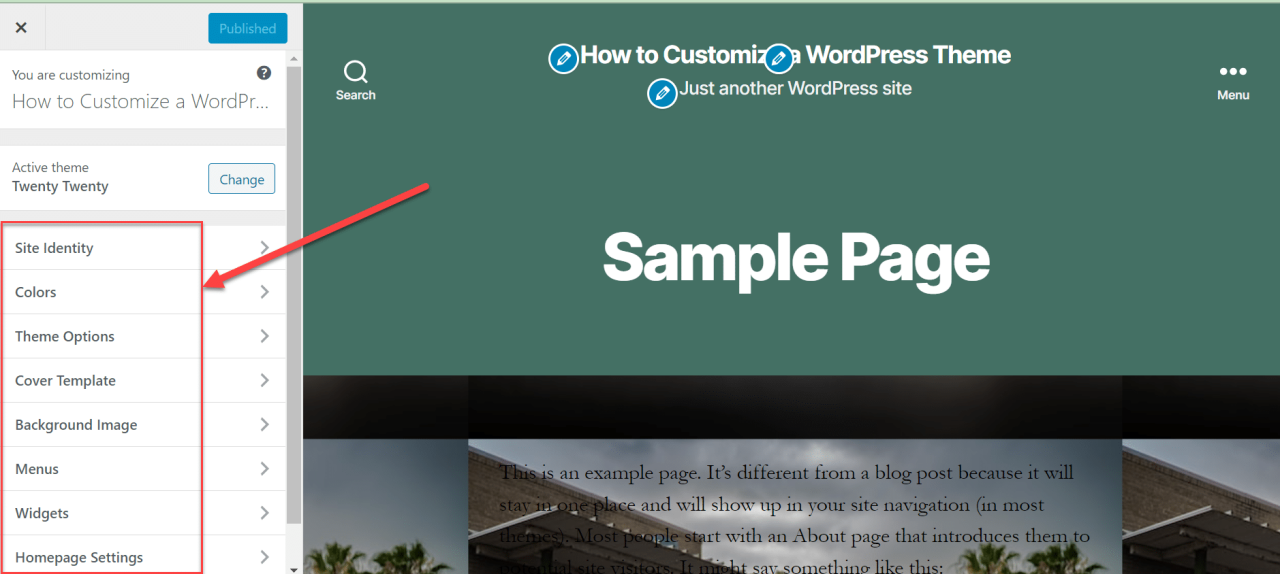
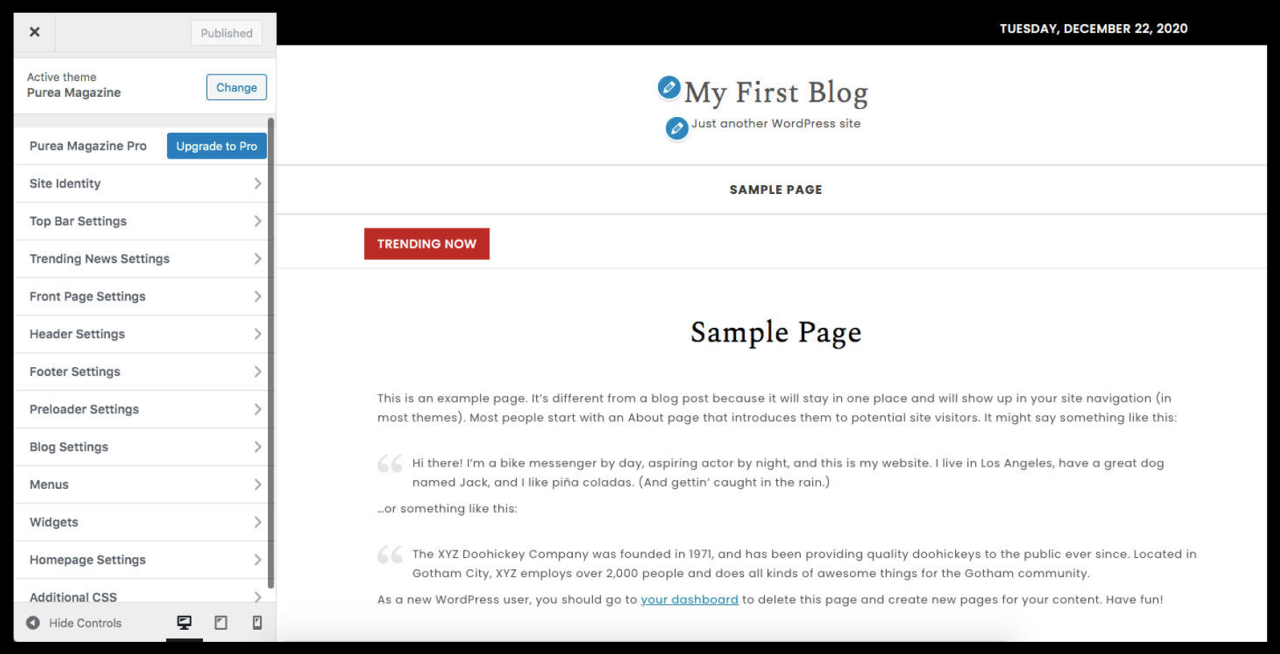
The WordPress Customizer serves as a powerful tool for modifying the appearance and functionality of your site in real-time. This intuitive interface allows users to visualize changes as they make adjustments, ensuring a seamless experience when customizing their themes. By utilizing the Customizer, website owners can create a unique look that aligns with their brand identity without the need for extensive coding knowledge.Navigating the WordPress Customizer interface is straightforward.
To access it, select “Appearance” from the WordPress dashboard menu, then click on “Customize.” This action opens the Customizer, typically displayed on the left side of the screen, while your site’s live preview appears on the right. The left panel features various customization options, categorized for ease of use.
Available Customization Settings
Within the WordPress Customizer, users can adjust numerous settings to enhance their website’s design and functionality. Understanding the available options is crucial for effective customization. Below are some of the key settings you can modify:
- Site Identity: This section allows you to set your site title, tagline, and logo. These elements play a significant role in establishing your brand’s identity.
- Colors: Users can change the color scheme of their site, including background color, text color, and link color. A well-chosen color palette can significantly affect user experience and engagement.
- Typography: Font styles and sizes can be adjusted to enhance readability and aesthetic appeal. Custom typography can significantly influence the overall look of your site.
- Menus: The Customizer enables users to create and manage navigation menus, enhancing site usability and allowing visitors to navigate easily between different sections.
- Widgets: You can add, remove, or customize widgets in sidebars and footers, providing opportunities for additional functionality and content display.
- Homepage Settings: This setting allows you to choose between displaying your latest posts or a static homepage, which is critical for conveying the desired message to your audience.
Previewing changes before publishing is one of the standout features of the WordPress Customizer. As you make adjustments, you can see how each modification affects the live version of your site in real-time. This capability prevents unexpected outcomes once changes are published.
“Seeing is believing; the live preview in the Customizer empowers users to make informed design choices before finalizing their updates.”
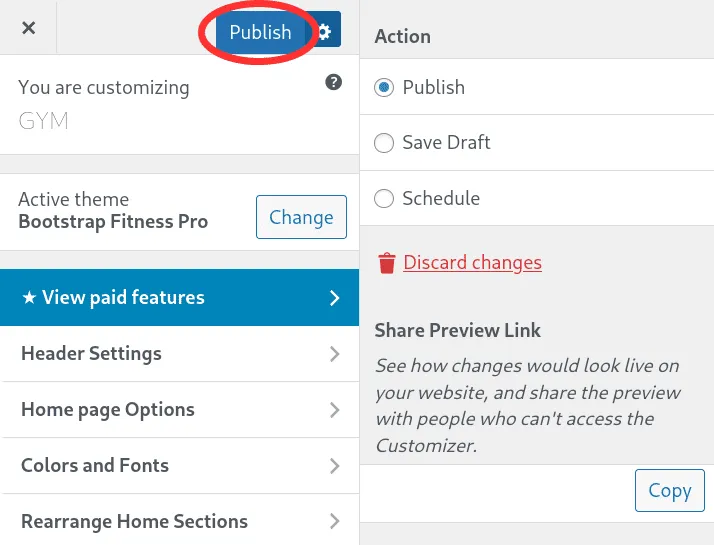
For best practices, take advantage of the “Publish” button only after ensuring that all adjustments align with your vision. This careful approach ensures a polished final product that effectively represents your brand.
Customizing with CSS
Customizing your WordPress theme with CSS can significantly enhance its appearance and functionality. By applying custom CSS, you can make your site stand out and tailor it to your specific branding needs. This section will delve into how you can effectively add custom CSS, tips for identifying CSS selectors, and a list of common CSS modifications to maximize your theme’s potential.
Adding Custom CSS
To enhance the appearance of your WordPress theme, adding custom CSS is a straightforward process. You can do this directly through the WordPress Customizer or by using a child theme. The WordPress Customizer provides a dedicated section for additional CSS, ensuring your changes are easy to implement and preview in real-time. To access this, navigate to Appearance > Customize > Additional CSS in your WordPress dashboard.
Here, you can enter your CSS code, which will override the existing styles applied by your theme.
Identifying CSS Selectors
Understanding how to identify CSS selectors is crucial for effective customization. Inspecting elements on your webpage using browser developer tools allows you to see the current styles applied. Right-click on any element and select “Inspect” to open the developer console. The highlighted section will reveal the HTML structure and the corresponding CSS selectors. Pay attention to class and ID attributes, as these are often used to target specific elements on your site.
Common CSS Modifications
There are numerous common CSS modifications that can enhance your WordPress theme’s aesthetics. Below is a list of some popular adjustments that users typically make:
- Changing Font Styles: Adjust fonts using the font-family property to improve readability and match your branding.
- Adjusting Colors: Use color properties to modify text, background, and border colors to align with your brand identity.
- Modifying Spacing: Customize margins and padding for better layout and spacing between elements, enhancing the overall look.
- Styling Links: Change the appearance of links with hover effects, different colors, or underline styles to make them more visually appealing.
- Customizing Buttons: Style button backgrounds, borders, and text colors to create a more inviting call to action.
- Image Adjustments: Control image sizes and borders to maintain a consistent look across your site.
- Responsive Design: Use media queries to ensure that your design looks good on various devices by adjusting styles for different screen sizes.
These modifications allow you to personalize your WordPress theme significantly and can greatly impact your site’s user experience.
Effective use of CSS can transform a standard WordPress theme into a unique representation of your brand.
Utilizing Child Themes
A child theme in WordPress is a theme that inherits the functionality and styling of another theme, known as the parent theme. It allows users to customize their website safely without losing the ability to update the parent theme. Utilizing child themes is essential for maintaining the integrity of customizations while ensuring that updates to the parent theme do not overwrite any changes made.Creating a child theme involves a few straightforward steps.
First, you need to create a new directory in the WordPress themes folder, typically found at `/wp-content/themes/`. Inside this directory, you will create a `style.css` file and a `functions.php` file. In the `style.css` file, you will define the child theme’s metadata, including the ‘Template’ field that specifies the parent theme. The `functions.php` file is used to enqueue the parent theme’s styles and scripts.
Process of Creating a Child Theme
To create a child theme, follow these steps:
1. Create a New Folder
Navigate to `/wp-content/themes/` and create a new folder for your child theme. It’s a good practice to name it after the parent theme with ‘-child’ appended (e.g., `twentytwenty-child`).
2. Add the style.css File
In the new folder, create a `style.css` file. This file should include the following code:“`css/* Theme Name: Twenty Twenty Child Template: twentytwenty – /“`
3. Add the functions.php File
Create a `functions.php` file in the same folder and add the following code to enqueue the parent theme’s stylesheet:“`php “`By following these steps, you will have successfully created a child theme that is ready for customization.
Best Customizations for Child Themes
Utilizing a child theme is particularly beneficial for the following types of customizations:
Modifying Styles
Override or add custom CSS styles to change the appearance of the parent theme without altering core files. This is essential for maintaining a reliable upgrade path.
Custom Templates
Create custom page templates or modify existing ones. This allows for the development of specific layouts while retaining the overall functionality of the parent theme.
Adding Functions
Introduce new functions specific to your site, such as custom post types or widgets, enhancing the capabilities of the parent theme.
Changing Theme Options
Modify theme options that are available in the parent theme settings, integrating enhancements that meet specific requirements.
Utilizing child themes not only protects your customizations but also streamlines the process of updating the parent theme without fear of losing changes.
In summary, using a child theme is a fundamental practice in WordPress theme development that ensures safe, maintainable, and efficient customizations to your website.
Adding and Modifying Widgets
Widgets are versatile tools in WordPress that allow you to add various functionalities and content areas to your site’s sidebars and footers. They can enhance user experience by providing additional information, features, and interactive elements without requiring coding knowledge. Utilizing widgets effectively enables you to tailor your website’s layout and improve engagement.Accessing widgets in a WordPress theme is straightforward. Navigate to the WordPress dashboard, click on “Appearance,” and select “Widgets.” Here, you will find available widgets that can be dragged and dropped into designated areas like sidebars and footers.
Each widget can be customized based on your requirements, including options for titles, content, and layouts.
Guide for Adding New Widgets
To enhance your website by adding new widgets, it is essential to understand the various widget areas available in your WordPress theme. Here’s a step-by-step guide for successfully incorporating new widgets:
1. Access the Widgets Section
As mentioned, go to “Appearance” and then “Widgets.”
2. Select a Widget
From the list of available widgets, select a widget that suits your needs. Common options include “Text,” “Image,” “Calendar,” and “Recent Posts.”
3. Drag and Drop
Drag the widget of your choice into the desired widget area (sidebar or footer).
4. Configure Settings
Upon placing the widget, you will have options to configure its settings. Enter necessary information like titles and content, then click “Save.”
5. View Your Changes
After saving, navigate to the front end of your site to see the newly added widget in action.Utilizing widgets effectively allows for customization and personalization of your website, leading to a more engaging experience for users.
Examples of Popular Widgets and Customization Options
Several widgets are commonly used across WordPress sites that can significantly improve functionality. Here are some popular widgets along with their customization options:
Text Widget
This simple widget allows you to add custom HTML or plain text. You can adjust the title, content, and display options to fit your design.
Image Widget
Great for showcasing images, this widget lets you upload images directly from your media library. You can also add alt text for accessibility and purposes.
Recent Posts Widget
Automatically displays a list of your latest published posts. Options include defining the number of posts to display and whether to show post dates.
Categories Widget
This widget lists your site’s categories, providing visitors with an easy way to navigate your content. You can customize how categories are displayed, either as a dropdown or a list.
Social Media Icons Widget
This is essential for promoting your social media profiles. You can customize icon appearance, links, and alignment to fit seamlessly into your site design.Each widget can be tailored to fit your theme’s aesthetic and improve the overall user experience, allowing for a personalized touch that reflects your brand’s identity.
Enhancing Themes with Plugins
Plugins play a crucial role in expanding the functionality of a WordPress theme, allowing for enhanced customization and improved user experience. By integrating various plugins, users can transform the aesthetic and operational capabilities of their site far beyond the default settings of their theme. This section delves into beneficial plugins that can elevate your theme customization.
Beneficial Plugins for Theme Customization
When selecting plugins to enhance your WordPress theme, it is essential to consider those that are specifically designed for customization purposes. Here are some exemplary plugins that can significantly improve the functionality and design of your theme:
- Elementor: A powerful page builder that allows users to drag and drop elements to create visually appealing layouts without any coding knowledge.
- Beaver Builder: Another user-friendly page builder that facilitates real-time editing and offers a variety of pre-designed templates, streamlining the design process.
- WPBakery Page Builder: This plugin provides a comprehensive interface for designing pages, complete with a frontend editor and extensive design options.
- Advanced Custom Fields: A tool that enables users to add custom fields to their WordPress edit screens, allowing for tailored content management.
- WooCommerce: Essential for eCommerce sites, this plugin allows you to customize product pages and enhance the shopping experience.
Integrating these plugins into your theme is straightforward and can be accomplished via the WordPress dashboard. Users can search for the desired plugin in the Plugins section, install it, and then activate it for immediate use.
Integrating Plugins for Added Functionality
Integrating plugins into your WordPress theme not only augments its functionality but also enriches the user experience. The following points illustrate how to seamlessly incorporate plugins:
- Navigate to the Plugins section in your WordPress dashboard.
- Click on Add New to search for the desired plugin by name.
- Once found, click on Install Now and then activate the plugin.
- Follow the plugin-specific instructions for setup and customization to ensure proper functionality.
Understanding the compatibility of your chosen plugins with your theme is crucial, as some may conflict with existing features. Testing plugins in a staging environment can prevent issues on the live site.
Plugin Features that Enhance Theme Design
Many plugins offer features aimed at improving the aesthetic appeal of your WordPress site. Below are notable features that can significantly enrich theme design:
- Custom Fonts: Some plugins allow you to easily integrate custom fonts, enhancing typography without needing advanced CSS knowledge.
- Image Optimization: Plugins like Smush or EWWW Image Optimizer can compress images, improving load times while maintaining visual quality.
- Slider Creation: Plugins such as Slider Revolution or MetaSlider enable users to create dynamic image sliders that enhance visual interest on the homepage or other key pages.
- Color Pickers: Many customization plugins include intuitive color pickers for adjusting the color scheme of your theme, allowing for more personalized branding.
- Responsive Design Options: Certain plugins ensure that content is easily adaptable to various screen sizes, enhancing usability across devices.
These features not only improve the appearance of your site but also contribute to an engaging and interactive user experience. By leveraging the capabilities of various plugins, WordPress users can effectively customize their themes and create a unique online presence.
Best Practices for Theme Customization
Before making any changes to your WordPress theme, it’s essential to understand the foundational practices that can safeguard your website and enhance the effectiveness of your customizations. Following best practices not only helps in avoiding pitfalls but also ensures your website remains functional and user-friendly throughout the customization process.One of the most critical steps in theme customization is creating a backup of your website.
This ensures that if something goes wrong during the customization, you can easily restore your site to its previous state without losing any data or settings. Theme changes can sometimes lead to unexpected issues, so having a backup acts as your safety net.
Checklist of Best Practices During Theme Customization
Having a checklist can significantly streamline the theme customization process. Below are essential elements to consider:
- Create a full backup of your website before starting any customization.
- Test customizations on a staging site to avoid disrupting the live website.
- Document all changes made, including CSS modifications and plugin installations.
- Use child themes for customizations to preserve changes during theme updates.
- Regularly update your theme and plugins to maintain compatibility and security.
- Check for browser compatibility to ensure the website functions across all major browsers.
- Optimize images and other media to enhance loading times and improve user experience.
The importance of maintaining a structured approach during theme customization cannot be overstated. Each of these points contributes to a smoother, more reliable customization experience.
Ensuring Mobile Responsiveness in Customizations
As mobile usage continues to rise, ensuring that your theme customizations are mobile responsive is paramount. Responsive design ensures that your website will look good and function well on all devices, from desktops to smartphones. Here are some tips for achieving mobile responsiveness:
- Utilize responsive design frameworks or themes that automatically adjust to different screen sizes.
- Implement media queries in your CSS to control how elements resize or reflow on smaller screens.
- Avoid fixed-width layouts, opting instead for fluid grids that can adapt to various screen dimensions.
- Test your customizations on multiple devices and screen sizes to ensure usability and readability.
- Prioritize touch-friendly design for navigational elements, ensuring they are adequately spaced and sized for mobile users.
By adhering to these practices, you will not only enhance the overall appearance and functionality of your WordPress site but also create a seamless experience for users accessing your site from any device.
Troubleshooting Common Customization Issues
Customizing a WordPress theme can enhance the visual appeal and functionality of your website, but it also comes with its set of challenges. Users often encounter various issues during the customization process that can hinder their progress and lead to frustration. Understanding these common problems and their solutions is essential for a smooth customization experience.Several frequent problems arise while customizing a WordPress theme, particularly for those inexperienced in web development.
Recognizing these issues early can help streamline your editing process. Below are some of the common problems you may encounter, along with effective solutions.
Common Problems Encountered During Theme Customization
Customization issues can manifest in numerous ways, affecting the appearance or performance of your website. Below is a list of the most frequently encountered problems:
- Theme Not Displaying Changes: This can occur due to caching issues or failure to save settings properly. Ensure that you clear your browser cache or disable caching plugins before checking your changes.
- CSS Overriding: Custom CSS might not apply as intended due to specificity conflicts or missing selectors. Inspect elements using browser developer tools to identify and modify the CSS that is being overridden.
- Plugin Conflicts: Some plugins may conflict with your theme’s functionality, causing layout issues or other errors. Deactivate plugins one by one to determine which one is causing the problem.
- Responsive Issues: Changes might not appear correctly on mobile devices. Always test your website on various screen sizes to ensure a responsive design.
- Loss of Customizations After Updates: Theme updates can overwrite custom changes. To prevent this, utilize child themes or backup your customizations regularly.
Solutions for Resolving Common Customization Errors
Addressing customization errors requires a methodical approach. Below are effective strategies to resolve these issues and restore your theme’s functionality:
- Clear Caches: Use the caching settings in your plugin to clear the cache, or manually clear your browser cache to see the most recent changes.
- Check for Plugin Conflicts: Disable all plugins and reactivate them one at a time to identify any that may be causing issues. Contact the plugin developer for support if a conflict arises.
- Use Child Themes: Customize your theme using a child theme to preserve modifications during updates. This ensures your changes remain intact, and you can safely update the parent theme.
- Inspect with Developer Tools: Utilize browser developer tools to inspect elements and adjust CSS. This can help identify where overrides are happening and allow for quick fixes.
- Backup Content Regularly: Utilize plugins that enable automatic backups before making significant changes. This way, you can revert to a previous version if necessary.
Methods for Reverting Changes Made to a Theme
If errors arise from theme customizations, reverting changes is a crucial skill. Here are effective methods to undo unwanted modifications:
- Use the WordPress Revisions Feature: WordPress saves revisions of posts and pages. Access the revisions option in the editor to revert to a previous version if needed.
- Restore from Backup: If you maintain backups via plugins or your hosting provider, restore a backup to revert the theme to its previous state before issues occurred.
- Deactivate Custom CSS: If you added custom CSS directly to your theme, you can remove or comment out the code to see if it resolves the issue.
- Revert to Default Settings: Many themes have an option to restore default settings. Use this feature to reset any customizations and start fresh.
- Manually Remove Customizations: For changes made directly in the theme files, use a code editor to remove or comment out the code sections that were added.
Regular backups and careful use of child themes are essential practices to protect against loss of customization during theme updates.
Resources for Further Learning
To enhance your skills in WordPress theme customization, a variety of resources are available that cater to both beginners and advanced users. These resources include online platforms, books, and community forums that provide valuable insights, tutorials, and support. Engaging with these materials will not only deepen your understanding of WordPress themes but also empower you to create more dynamic and visually appealing websites.
Online Resources for Advanced Theme Customization
Diving into advanced theme customization requires access to quality online resources. Here are some notable platforms that offer comprehensive courses, documentation, and tutorials:
- WordPress Codex: The official documentation provides extensive guidance on theme development and customization.
- WPBeginner: This site offers tutorials covering various aspects of WordPress, including advanced theme modifications.
- Udemy: A variety of courses focusing on WordPress theme customization are available, tailored to different skill levels.
- LinkedIn Learning: Offers professional courses that delve into advanced WordPress topics, including theme development.
- Envato Tuts+: Features both written tutorials and video courses specifically related to WordPress themes.
Recommended Books and Courses on WordPress Themes
Books and structured courses are valuable for those who prefer a more formal approach to learning. The following titles and courses are highly recommended:
- “WordPress Theme Development” by Rachel McCollin: This book provides insights into creating custom themes from scratch.
- “Professional WordPress: Design and Development” by Brad Williams, David Damstra, and Hal Stern: A comprehensive resource that covers both design and technical aspects.
- “Building Responsive WordPress Themes” by Joe Casabona: Focuses on developing themes that are mobile-friendly and responsive.
- Treehouse WordPress Courses: Offers a range of courses focused on theme development, including hands-on projects.
- Codecademy’s Learn WordPress Course: A beginner-friendly introduction that covers the basics of theme customization.
Comparison of Forums and Communities for WordPress Users
Engaging with the WordPress community can provide essential support and knowledge sharing. Here’s a comparison of various forums and platforms available for WordPress users:
| Forum/Community | Description | Best For |
|---|---|---|
| WordPress.org Support Forums | The official support forum where users can ask questions and receive help from the community. | General issues and troubleshooting. |
| Stack Overflow | A platform for developers to ask technical questions and share solutions. | Advanced technical inquiries and coding issues. |
| Facebook Groups (e.g., WordPress Help & Share) | Active communities where users share experiences and tips. | Networking and sharing experiences. |
| Reddit (r/WordPress) | A vibrant subreddit where users can discuss a variety of WordPress topics. | Casual discussions and recommendations. |
| WPBeginner Community | A community platform offering articles, discussions, and Q&A. | Beginner-friendly advice and resources. |
Utilizing these resources will significantly enhance your proficiency in customizing WordPress themes, leading to more successful and visually appealing websites.
Last Point
In summary, effective customization of your WordPress theme can transform your website into a visually appealing and user-friendly platform. By following the steps Artikeld in this guide, you’ll not only enhance the design but also improve the functionality of your site, ensuring a better experience for your visitors. Remember to always back up your theme before making changes and to leverage the various resources available for ongoing learning and improvement.