How to Customize Your Squarespace Website’s Design is a crucial skill for anyone looking to establish a unique online presence. In today’s digital landscape, the design of your website plays a pivotal role in attracting and retaining visitors, making it essential to tailor every aspect to reflect your brand’s identity. This guide will illuminate the various features and tools available within Squarespace, empowering you to create a visually appealing site that enhances user experience and conveys your message effectively.
From selecting the right template to advanced CSS modifications, this comprehensive overview will walk you through the essential steps of customization. You will discover how even the smallest design tweaks can significantly impact your site’s functionality and aesthetics.
Overview of Squarespace Website Customization
The customization of website design is a critical aspect for any business or individual looking to establish a distinct online presence. Squarespace offers various tools and features that enable users to personalize their websites efficiently, ensuring that the design aligns with their brand identity and meets their functional needs. By tailoring the visual elements of a website, users can create a unique experience that resonates with their target audience.The platform provides a range of customization options that cater to both novice users and experienced web designers.
Users can modify templates, choose color palettes, adjust typography, and add custom CSS to achieve the desired look and feel of their site. These basic features lay the foundation for a visually appealing and user-friendly experience, which is crucial in retaining visitors and encouraging engagement.
Basic Features for Design Customization
Squarespace includes a suite of basic features that facilitate design customization, allowing users to create a personalized website without extensive coding knowledge. These features can significantly enhance the overall aesthetics of a website.
- Template Selection: Squarespace offers a variety of professionally designed templates that serve as the foundation for customization. Users can select a template that aligns with their vision and then personalize it to reflect their brand.
- Style Editor: The Style Editor allows users to adjust fonts, colors, and spacing, enabling them to tailor the visual aspects of their site easily. This feature ensures that users can create a cohesive design that matches their branding.
- Logo and Branding Options: Users can upload their logos and customize branding elements, such as site titles and descriptions, ensuring that their website is instantly recognizable to visitors.
- Media and Content Blocks: Squarespace allows users to add various content blocks, including images, videos, and galleries. This flexibility enables users to create visually rich pages that capture visitor attention.
- Mobile Optimization: Customization features in Squarespace automatically adjust designs for mobile devices, ensuring that the site is responsive and provides a seamless experience across different screen sizes.
The impact of these customization features on user experience and branding cannot be overstated. A well-designed website enhances navigation, making it easier for visitors to find information. Moreover, consistent branding across a website fosters trust and recognition, which are essential for customer loyalty.
“A unique website design not only captures attention but also communicates the brand’s values and personality.”
Getting Started with Squarespace Design
To effectively customize your Squarespace website’s design, it is essential to familiarize yourself with the platform’s various design settings. This structured approach will enable you to create a unique and visually appealing site that aligns with your brand identity and objectives.
The first step in the customization process involves accessing the design settings within your Squarespace account. Understanding the key areas that facilitate design modifications is crucial for achieving the desired aesthetic and functionality. Additionally, selecting the right template serves as a foundation for further design flexibility, making it a critical decision in the early stages of customization.
Accessing the Design Settings
Navigating to the design settings in Squarespace is straightforward. Follow these steps to access the customization options available for your website:
- Log in to your Squarespace account and select the website you wish to customize.
- In the left sidebar, click on the “Design” section to reveal a dropdown menu.
- Choose “Site Styles” from the menu, which will open the design settings interface.
- Within “Site Styles,” explore options such as fonts, colors, spacing, and other visual elements to begin personalizing your site’s appearance.
Understanding these steps lays the groundwork for a more comprehensive design experience on Squarespace.
Key Areas for Customization
Several key areas within Squarespace are essential for maximizing your website’s design potential. These areas allow for detailed customization and provide flexibility in how your content is presented:
Customization of key areas enhances user experience and aligns design with brand identity.
- Fonts: Adjusting font styles, sizes, and colors ensures your text is both readable and consistent with your branding.
- Colors: The color palette can significantly influence the visual appeal of your site. Selecting complementary colors fosters a cohesive design.
- Spacing: Proper spacing between elements contributes to a clean and organized layout, improving user navigation.
- Backgrounds: Choosing appropriate background images or colors can set the tone for your website and enhance its overall aesthetic.
- Button Styles: Customizing button shapes, colors, and hover effects increases user engagement and encourages actions.
These key areas highlight the importance of attention to detail in creating an effective design.
Choosing the Right Template for Design Flexibility
Selecting the appropriate template is a foundational step in customizing your Squarespace website. The right template offers a balance of built-in design features and flexibility for personal modifications. Here are some considerations to keep in mind when choosing a template:
Choosing a versatile template can streamline the customization process and enhance design possibilities.
- Design Aesthetic: Ensure the template reflects your brand’s style and values, providing a suitable starting point for further customization.
- Layout Options: Look for templates that offer multiple layout variations, which allow you to create different pages and sections without starting from scratch.
- Responsive Design: Choose a template that is mobile-friendly, ensuring your site looks great on all devices.
- Customization Capabilities: Review the extent to which the template allows for modifications in colors, fonts, and other design elements.
- Support and Documentation: Consider templates with robust support and documentation, as these resources can facilitate a smoother design process.
By making informed choices about your template, you set a strong foundation for an engaging and visually appealing website that reflects your brand identity.
Customizing Layouts and Page Structure
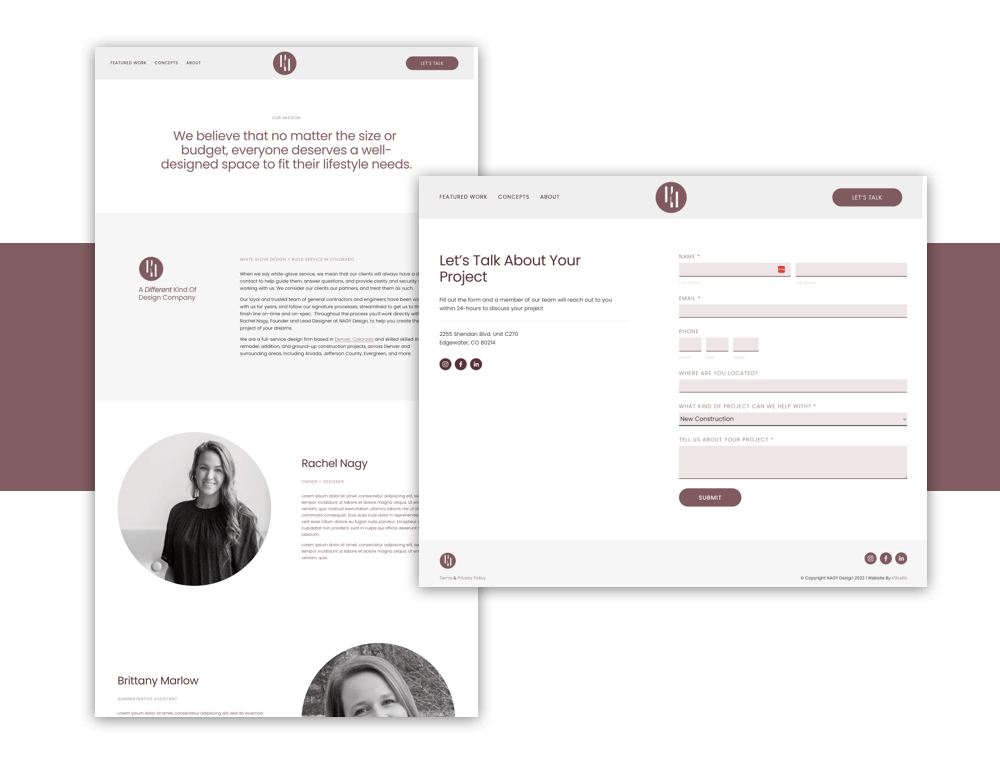
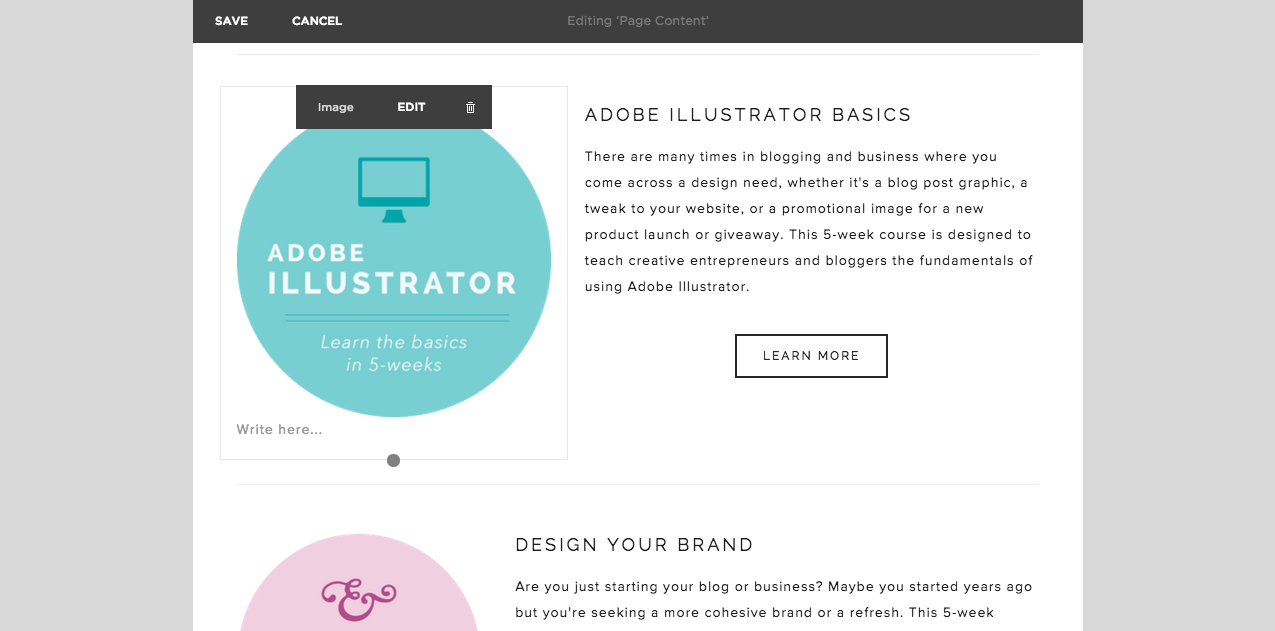
Customizing the layout and page structure of your Squarespace website is essential for creating a user-friendly experience that effectively showcases your content. By understanding how to manipulate page layouts, build a cohesive navigation menu, and add content blocks, you can create a website that not only meets your aesthetic preferences but also serves the needs of your audience.Squarespace provides a variety of tools that allow users to adjust their website layout effortlessly.
The drag-and-drop feature is particularly user-friendly, enabling you to rearrange elements on your pages simply by clicking and dragging them into your desired position. This flexibility allows for a more personalized design without the need for extensive coding knowledge.
Adjusting Page Layouts with Drag-and-Drop Features
One of the most powerful aspects of Squarespace is its intuitive drag-and-drop functionality. This feature allows users to rearrange elements on a page quickly and easily. To utilize this feature effectively, consider the following points:
- Access the page you wish to edit through the Squarespace editor.
- Hover over the content area to reveal the drag-and-drop icons, which appear as six dots.
- Click and hold the icon to drag elements around the page. You can rearrange text blocks, images, and other components to achieve the desired layout.
- Release the element in the new position to update the layout instantly.
This method of customization ensures that your layout remains dynamic and can adapt to different content needs or aesthetic changes over time.
Creating and Organizing Navigation Menus
An effective navigation menu is crucial for providing users with a seamless browsing experience. A well-structured menu allows visitors to navigate your site with ease, leading to improved engagement and reduced bounce rates.To create and organize your navigation menus, keep the following guidelines in mind:
- Utilize the ‘Pages’ section in the Squarespace dashboard to add new pages or sections to your navigation.
- Group related pages into folders to declutter your menu. This method maintains an organized structure while accommodating more content.
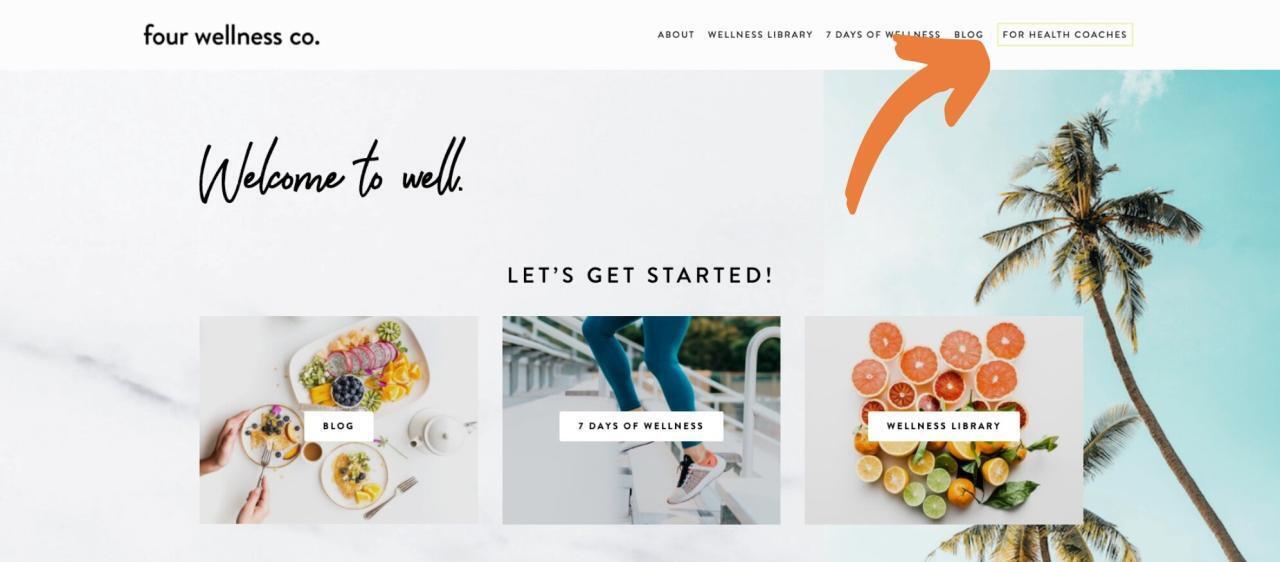
- Ensure that key pages, such as ‘Home’, ‘About’, and ‘Contact’, are easily accessible from the main navigation bar.
- Regularly review and update the navigation to reflect changes in your site’s content or user preferences.
By attentively curating your navigation menu, you enhance the overall usability of your site, making it easier for users to find the information they seek.
Adding and Arranging Content Blocks
Squarespace offers a variety of content blocks that can be added to pages, allowing for diverse multimedia presentation. Understanding how to arrange these blocks effectively is vital for creating visually appealing and informative pages.When adding content blocks, consider the following strategies:
- Choose from different types of blocks such as text, image, gallery, video, and button to enrich your content.
- Arrange blocks to create a logical flow of information, ensuring that related content is grouped together.
- Incorporate spacing and alignment options to enhance readability and visual appeal.
- Preview your changes on different devices to ensure that the layout remains mobile-friendly and visually balanced.
By thoughtfully adding and arranging content blocks, you can create engaging and informative pages that capture the attention of your audience.
Typography and Color Scheme Customization
In this segment, we will delve into the essential elements of typography and color scheme customization within your Squarespace website. A well-chosen font and color palette not only enhance the aesthetic appeal of your site but also improve user experience and readability. By applying effective customization strategies, you can ensure that your website reflects your brand identity while being visually inviting.Modifying font styles, sizes, and colors across your site is a straightforward process that can significantly enhance your website’s design.
Squarespace provides various options for typography customization, allowing users to select from a wide range of fonts and styles. To access font settings, navigate to the “Design” section in your site manager, then click on “Fonts.” Here, you can choose different typefaces for headings, paragraphs, and other text elements. To adjust font sizes, specific size options are available for each text category, ensuring that your content is easily readable across devices.
Additionally, you have the option to modify the font color by selecting from a color palette or entering a specific hex value to align with your branding. Consistency in font usage and color application across the site contributes to a polished and coherent look.
Font Styles and Application
When choosing font styles, consider the overall tone and message of your brand. Serif fonts often convey tradition and reliability, while sans-serif fonts are typically modern and clean. Here are a few tips for effective font customization:
Limit Font Choices
Aim to use two to three different fonts throughout your website to maintain coherence.
Hierarchy in Typography
Use varying sizes and weights to create a hierarchy, making it easier for users to navigate through your content.
Test Readability
Ensure that the selected fonts are legible on various devices and screen sizes.
Color Combinations for Enhanced Readability
Choosing the right color combinations is crucial for readability and user engagement. Below is a table showcasing effective color combinations that enhance readability:
| Background Color | Text Color | Contrast Ratio |
|---|---|---|
| White (#FFFFFF) | Black (#000000) | 21:1 |
| Dark Blue (#003366) | Light Gray (#D9E2E8) | 6.8:1 |
| Light Gray (#F2F2F2) | Dark Gray (#333333) | 10:1 |
| Pale Yellow (#FFF5CC) | Dark Brown (#4E3B31) | 8.5:1 |
These combinations not only provide aesthetic appeal but also ensure that text remains legible against its background.
Creating a Cohesive Color Palette
Establishing a cohesive color palette that aligns with your branding is vital for creating a unified visual identity. Here are some strategies to develop an effective color scheme:
Utilize Brand Colors
Incorporate your brand’s primary colors in various elements such as backgrounds, buttons, and typography.
Limit Color Palette
Stick to a palette of three to five colors to avoid overwhelming users and to maintain focus on content.
Experiment with Shades and Tints
Utilize different shades and tints of your chosen colors to create visual interest while maintaining a consistent theme.
Use Online Tools
Leverage color palette generators like Adobe Color or Coolors to explore harmonious combinations that enhance your brand message.By following these guidelines for typography and color scheme customization, you can create a visually appealing Squarespace website that effectively communicates your brand identity while enhancing user experience.
Adding Custom CSS for Advanced Design Tweaks
Incorporating custom CSS into your Squarespace website design is a powerful way to achieve advanced stylistic modifications that enhance your brand’s visual identity. This capability allows you to go beyond the standard design options provided by Squarespace, enabling a unique look that aligns perfectly with your vision.Accessing the custom CSS editor within Squarespace is a straightforward process that opens up a multitude of design possibilities.
To begin, navigate to your Squarespace dashboard. From there, select the “Design” option in the left sidebar, followed by “Custom CSS.” This area allows you to input your custom CSS code, which will immediately begin to affect your site’s appearance.
CSS Code Snippets for Common Design Modifications
Employing CSS snippets can effectively modify various design elements on your website. Below are examples of useful CSS code snippets for common modifications, which can easily be added to your custom CSS editor:
- Changing the Font Size and Style:
h1 font-size: 36px; font-family: 'Arial', sans-serif;This code will adjust the primary header font size and change its style to Arial.
- Modifying Button Colors:
.btn background-color: #007BFF; color: white;The above snippet will alter the background color of buttons to blue and change the text color to white.
- Adjusting the Padding of Images:
img padding: 10px;This line adds padding around all images, enhancing their spacing within the content.
- Customizing Link Hover Effects:
a:hover color: #FF5733; text-decoration: underline;This snippet modifies the color of links when hovered over, adding an underline for emphasis.
Testing and Previewing CSS Changes
Effectively testing and previewing your CSS changes is crucial for ensuring that modifications appear as intended across various devices and screen sizes. After entering your CSS code in the custom CSS editor, Squarespace provides an instant preview of changes within the editor itself. To further verify your design, it is advisable to utilize the following strategies:
- Preview Mode: Use the preview mode in Squarespace to observe how CSS changes affect your site in real-time. This allows for immediate adjustments without affecting the live site.
- Cross-Browser Testing: Check how your site appears in different browsers (e.g., Chrome, Firefox, Safari) to ensure consistent design across platforms.
- Mobile View Testing: Utilize Squarespace’s built-in mobile view feature to see how your CSS adjustments look on mobile devices, ensuring a responsive design.
Using Built-in Design Tools and Features
Squarespace provides an array of built-in design tools that empower users to create visually appealing websites without requiring extensive design skills. These features not only enhance the aesthetics of your site but also improve user experience through smooth navigation and interactive elements. Understanding how to leverage these built-in tools can significantly streamline your design process and help you achieve professional results.
Image Editing and Graphic Design Enhancements
Squarespace comes equipped with several powerful image editing tools that can be utilized directly within the platform. These tools allow users to enhance images without the need for external editing software, providing a seamless workflow. Key features include cropping, resizing, applying filters, and adjusting brightness and contrast settings.
- Image Cropping and Resizing: Users can easily adjust the dimensions of images to fit various layouts and maintain consistency across their website.
- Filter Application: A selection of customizable filters can be applied to images, allowing for a cohesive look throughout the site.
- Adjustment Tools: Fine-tuning the brightness, contrast, and saturation helps in achieving the desired visual impact.
Implementing Animations and Transitions
Animations and transitions are effective ways to enhance user engagement and give a dynamic feel to your website. Squarespace allows you to implement various animations on elements such as text, images, and buttons, helping to draw attention to key features.
- Fade In Effects: This effect is particularly useful for text and images as they load, providing a smooth entrance that captures user interest.
- Slide Transitions: Useful for galleries and content sections, slide transitions can be applied to create a more interactive user experience.
- Hover Effects: Adding hover effects on buttons and images can create an inviting feel, encouraging users to interact with the site.
Advantages of Built-in Blocks vs. Custom Code
Utilizing built-in blocks in Squarespace provides several advantages compared to custom coding, especially for users who may not have extensive programming knowledge. Built-in blocks are designed to be user-friendly, ensuring that even those with minimal technical skills can create attractive and functional pages.
- Ease of Use: Built-in blocks are intuitive and can be easily added, rearranged, and customized through the Squarespace interface.
- Responsive Design: Squarespace’s built-in blocks automatically adapt to different screen sizes, ensuring that your website looks good on any device.
- Time Efficiency: Using built-in blocks significantly reduces development time as they come pre-designed and ready for immediate use.
Mobile Optimization and Responsive Design
In an increasingly mobile-driven world, ensuring that your Squarespace website is optimized for mobile devices is paramount. A mobile-friendly design not only enhances user experience but also significantly impacts your website’s search engine ranking. This section will Artikel techniques for creating a mobile-friendly layout, the importance of responsive images, and best practices for testing your website across various devices.
Techniques for Ensuring a Mobile-Friendly Layout
To create a mobile-friendly layout, there are several strategies that can be effectively implemented. These techniques focus on simplifying navigation, optimizing content placement, and enhancing usability on smaller screens.
- Use a Responsive Template: Squarespace provides a range of templates that are inherently responsive. Choosing a template designed to adjust seamlessly to different screen sizes is the first step towards mobile optimization.
- Simplify Navigation: Ensure that your navigation menu is concise and easy to access. Use drop-down menus sparingly to avoid cluttering the screen.
- Optimize Content Placement: Prioritize essential information and features by placing them at the top of the mobile layout. This ensures that visitors can access critical content quickly.
- Adjust Button Sizes: Ensure that buttons are appropriately sized for touch interactions. Buttons should be large enough to be tapped easily without zooming in.
Importance of Responsive Images
Responsive images are integral to mobile optimization as they adapt to the screen size, ensuring fast loading times and an enhanced visual experience. When images are not responsive, they can slow down page loading times on mobile devices, leading to higher bounce rates. Implementing responsive images involves using the `srcset` attribute in your image tags, which allows browsers to select an appropriate image size based on screen resolution.
Responsive images ensure that the right file size is delivered for optimal user experience across all devices.
Best Practices for Testing the Website on Various Devices
Thorough testing on multiple devices is essential to guarantee that your website functions seamlessly across different platforms. By adhering to the following best practices, you can identify and rectify potential issues before your site goes live.
- Utilize Browser Developer Tools: Most modern web browsers come equipped with developer tools that allow you to simulate various screen sizes and devices. This enables you to view how your website appears on different resolutions.
- Perform Real Device Testing: Whenever possible, test your website on actual devices such as smartphones and tablets. Emulators may not accurately replicate the performance and responsiveness of real devices.
- Check Loading Speed: Use tools like Google PageSpeed Insights to analyze your website’s loading speed on mobile devices. Aim for a loading time of three seconds or less to minimize drop-offs.
- Gather User Feedback: Before launching, gather feedback from users on different devices to identify any issues with usability or layout that may need addressing.
Integrating Third-Party Applications and Features
Integrating third-party applications and features into your Squarespace website can significantly enhance its functionality, allowing you to offer unique services and improve user experience. By leveraging external widgets, plugins, and tools, you can add capabilities that are not included in the standard Squarespace offerings, making your site more dynamic and engaging.One of the key aspects of enhancing your Squarespace website is the seamless integration of third-party applications.
Successful integrations can expand the capabilities of your site, from enhancing e-commerce functionalities to improving performance and user engagement. Careful selection and implementation of these tools ensure compatibility and a smooth user experience.
Adding External Widgets and Plugins
Integrating external widgets and plugins is essential for achieving specific functionalities that align with your site’s goals. Popular third-party tools that work well with Squarespace include:
- Mailchimp: An email marketing tool that allows you to create and manage email campaigns directly from your website. By embedding a Mailchimp signup form, you can efficiently grow your email list.
- Instagram Feed: This integration allows you to display your Instagram posts on your website in real-time, enhancing your site’s visual appeal and promoting social media engagement.
- Shopify: For users looking to expand their e-commerce capabilities, integrating Shopify can provide advanced features such as inventory management and more robust payment options.
- Google Analytics: Integrating Google Analytics enables you to track visitor behavior, providing insights into site performance and user engagement that can inform your design choices and marketing strategies.
To ensure seamless compatibility and integration of these third-party tools, it is critical to follow specific steps. Firstly, confirm that the application provides a clear integration guide or API documentation. Secondly, check community forums and support pages for user feedback regarding the integration with Squarespace. It’s essential to test the functionality on a staging site before rolling out the changes to your live website.
“Compatibility with Squarespace often requires adhering to specific coding standards; therefore, referencing official documentation is paramount.”
Lastly, maintain your website’s performance post-integration by regularly checking for updates to the third-party tools. Outdated tools may lead to security vulnerabilities or incompatibilities, detracting from the overall user experience. By following these guidelines, you can effectively enhance your Squarespace website’s functionality through well-integrated third-party applications and features.
Creating Custom Graphics and Visual Elements
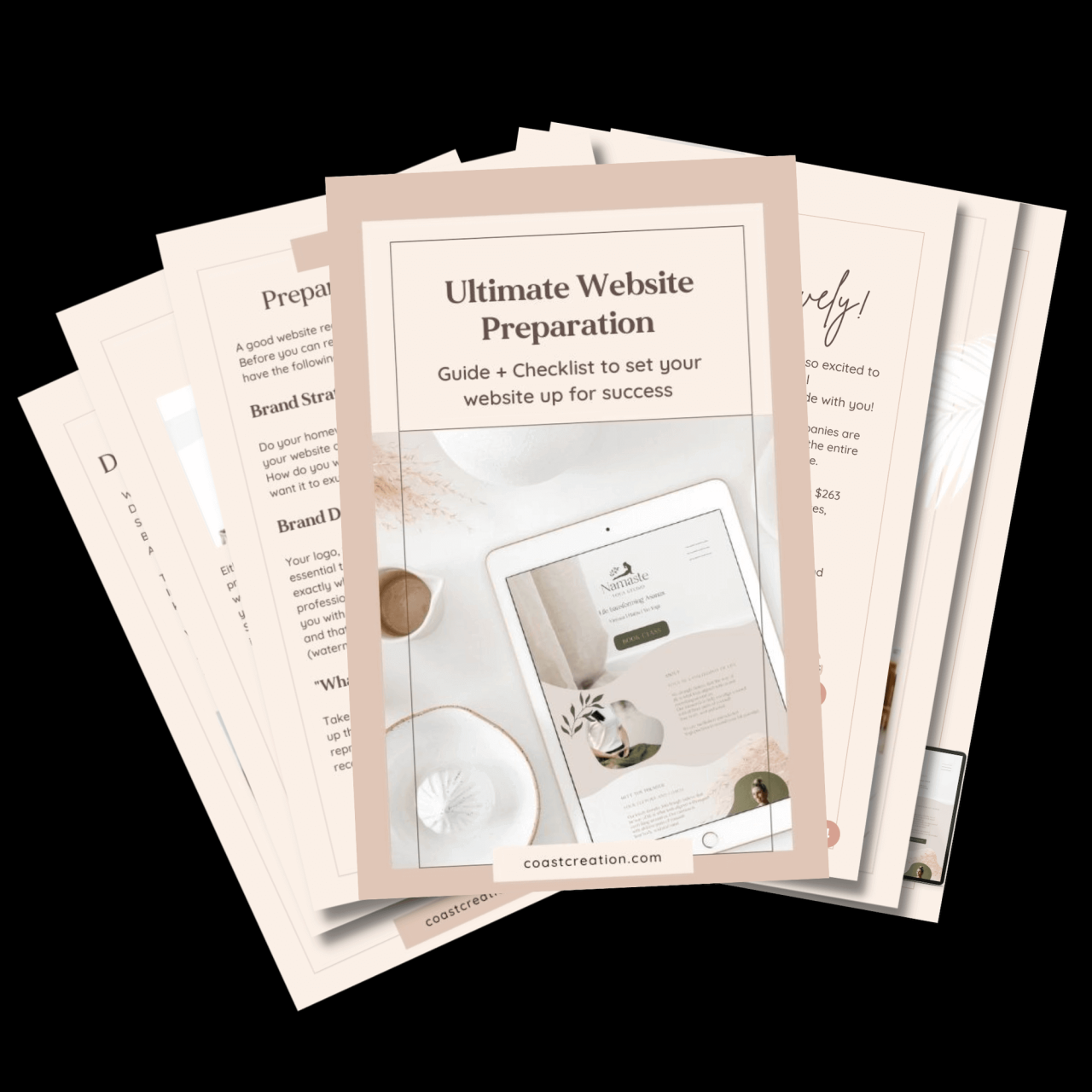
Creating custom graphics and visual elements is essential for enhancing the appeal and branding of your Squarespace website. These visuals not only capture the attention of visitors but also communicate your brand’s message effectively. By utilizing various online tools and optimizing images, you can significantly improve your site’s overall aesthetic.Custom graphics can be designed using a variety of online tools that cater to different skill levels.
The following tools are popular among website creators for crafting unique visuals:
Online Tools for Designing Custom Graphics
Numerous online platforms provide user-friendly interfaces for creating custom graphics, enabling users to design visuals without extensive graphic design experience. Some noteworthy options include:
- Canva: A versatile design tool offering a wide range of templates for social media posts, banners, and infographics. Users can easily customize elements, colors, and text to fit their branding.
- Adobe Spark: Ideal for creating short videos, web pages, and graphics, Adobe Spark provides a rich library of images and design assets, along with customization options.
- Visme: This platform allows users to create visually engaging presentations and infographics, blending functionality with aesthetics. It is particularly useful for data visualization.
- Piktochart: A favored tool for infographics, Piktochart allows users to transform complex data into visually appealing graphics that are easy to understand.
Once graphics have been created, they need to be appropriately uploaded and optimized for web use. Effective image management contributes to faster loading times and an enhanced user experience.
Uploading and Optimizing Images for Web Use
When preparing images for your Squarespace website, it is crucial to ensure that they are web-optimized. This process includes selecting the correct file format and applying suitable compression techniques. Below are key considerations:
- File Formats: Common web formats include JPEG for photographs, PNG for images with transparency, and SVG for vector graphics. Each format has its advantages depending on the image type.
- Compression: Tools like TinyPNG and JPEGmini allow for effective image compression without significantly reducing quality, helping maintain quick loading times.
- Image Dimensions: Adjusting images to the appropriate dimensions for your website’s layout prevents unnecessary scaling, which can slow down performance.
- Alt Text: Adding descriptive alt text to images not only improves accessibility but also contributes to , aiding in search engine rankings.
Incorporating custom icons and illustrations can further enhance your branding strategy by providing a unique visual identity.
The Role of Custom Icons and Illustrations in Branding
Custom icons and illustrations serve as vital components of a cohesive branding strategy. They can convey complex ideas succinctly and help create a memorable brand image. Here are several advantages of using custom graphics:
- Brand Recognition: Custom visuals help differentiate your brand from competitors, making it easier for users to identify and remember your business.
- Visual Storytelling: Illustrations can convey emotions and narratives, making your content more relatable and engaging for the audience.
- Consistency: Using a consistent style across all visual elements enhances the overall aesthetic and professional look of your website, reinforcing brand identity.
A well-thought-out approach to creating and incorporating graphics on your Squarespace website can significantly elevate its design and user engagement. By leveraging online tools, optimizing images, and utilizing custom icons and illustrations, you can craft a visually stunning and effective online presence.
Maintaining Consistent Branding Across the Website
Establishing a unified brand identity is crucial in web design, as it enhances recognition and builds trust among users. A consistent brand presence across all elements of your website fosters a cohesive visual language that resonates with your audience, ultimately leading to increased engagement and loyalty.Incorporating your brand’s visual elements—such as logos, slogans, and colors—throughout your website ensures that visitors can easily identify your business.
This section will detail effective methods for achieving brand consistency across various design components.
Integrating Logos, Slogans, and Brand Colors
A seamless integration of your brand assets is vital for establishing a recognizable identity. Here are several strategies for maintaining consistency:
- Logo Placement: Position your logo prominently on the homepage and header, ensuring it is visible on every page. This promotes brand familiarity and sets the tone for your site’s aesthetic.
- Uniform Color Palette: Select a specific color palette that reflects your brand’s personality and utilize it consistently across backgrounds, buttons, and text links. This helps create a harmonious visual experience.
- Slogan Visibility: Feature your tagline or slogan in a fixed position, such as beneath the logo or within the header. This reinforces your brand message and creates a memorable impression.
By applying these strategies diligently, you can ensure that your branding is cohesive and easily identifiable throughout your site.
Aligning Design Elements with Marketing Goals
Your website should not only reflect your brand identity but also support your overarching marketing objectives. Consistency in design elements plays a critical role in achieving this alignment. Consider the following approaches:
- Consistent Typography: Use a limited selection of fonts that align with your brand’s tone, making sure they are applied uniformly across headings, body text, and calls to action. This enhances readability and maintains a professional appearance.
- Imagery and Graphics: Choose images and graphics that convey your brand’s message and aesthetic. All visuals should evoke the same emotions you wish to associate with your brand, fostering a deeper connection with your audience.
- Call-to-Action Design: Ensure that buttons and prompts are styled in a way that reflects your brand colors and typography. This encourages user interaction while reinforcing brand recognition.
A well-aligned design not only visually engages users but also effectively communicates your marketing goals, driving conversions and achieving desired outcomes.
“Brand consistency is not just about how a company looks; it’s about how it feels to customers. A unified experience builds trust and loyalty.”
Concluding Remarks
In conclusion, mastering the art of how to customize your Squarespace website’s design not only enriches your site’s appearance but also strengthens your brand’s online presence. With the insights shared in this guide, you are now equipped to explore the vast array of customization options available, ensuring your website stands out in a competitive market. Remember, each design choice you make contributes to an engaging user experience, so take the time to experiment and refine your site to perfection.